Advanced Functions (Classic)
Advanced Functions is one of the options inside a task. Because it has so many capabilities, it gets its own page. This page covers the classic (Form) editor; for the visual node-graph version see the Flow / Canvas editor.
Enable Advanced Functions at the bottom of a task, then pick a saved profile or click Add New to open the editor. The editor has two modes, toggled at the top right — Form (documented here) and Canvas. Profiles are saved by name and reusable across tasks and campaigns.
URL Condition
This is the condition that must be met to trigger the configured action. Choose CONTAINS or EQUALS for the page where you want the action to happen.

This is not the link you want the bot to click — it's the page address where the action should happen. To click the "About us" button on your homepage, the condition is your homepage address.
With EQUALS the bot matches every character of the URL — a missing slash makes it skip the function. Prefer CONTAINS whenever possible.
Actions
Pick what the bot should do. The classic editor originally offered Click, Type, Inject Cookies and Inject JS — and now supports 25 actions in the same dropdown:
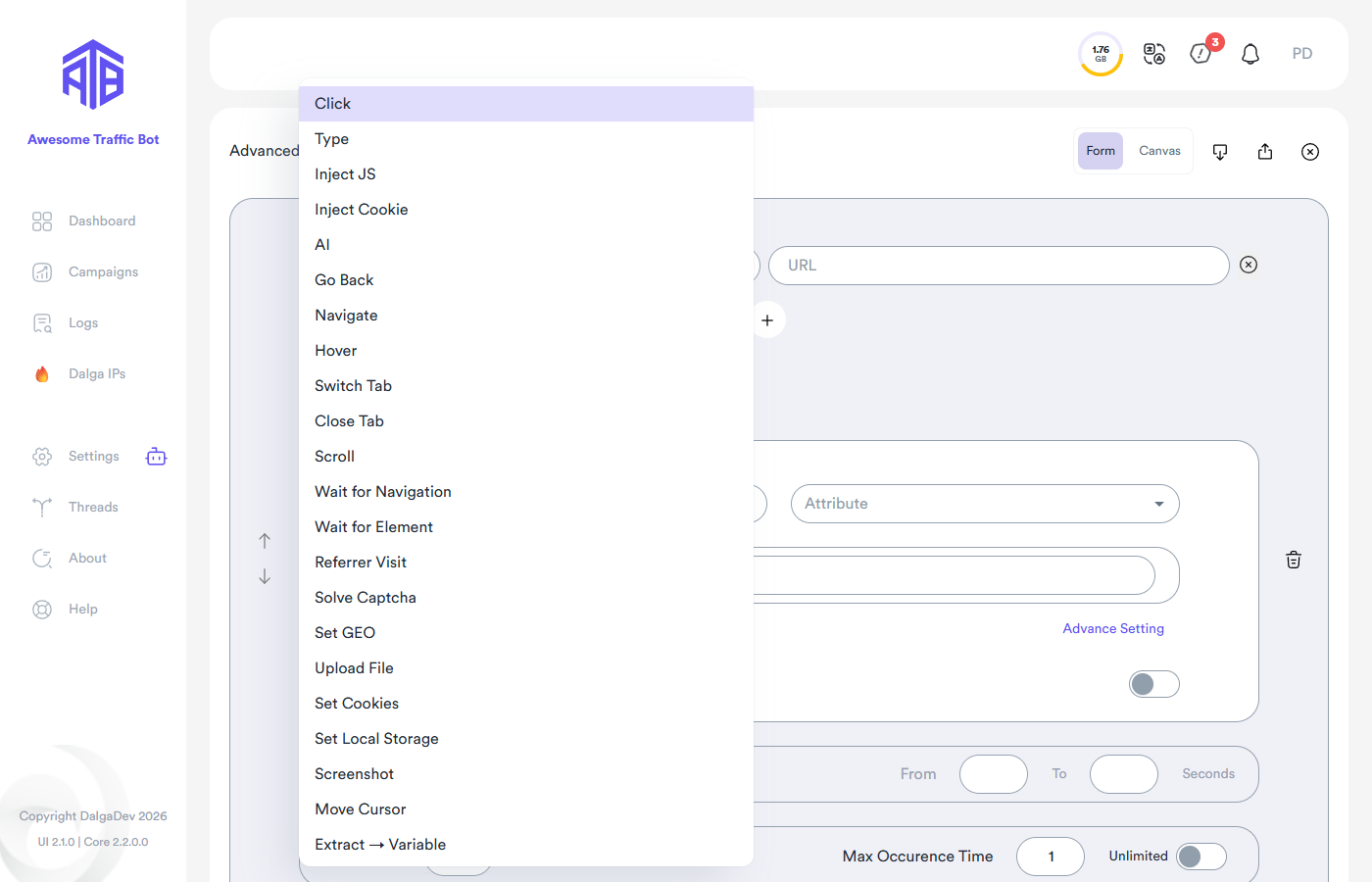
Interaction: Click · Type · Hover · Scroll · Move Cursor · Upload File Navigation: Go Back · Navigate · Switch Tab · Close Tab · Referrer Visit · Search · Visit Other Webpages Waiting: Wait for Navigation · Wait for Element Data & logic: Inject JS · Extract → Variable · Extract All → List Session: Inject Cookie · Set Cookies · Set Local Storage · Set GEO Utility: AI · Solve Captcha · Screenshot
The four original actions are documented below; the rest behave the same as their Flow node counterparts.
Click
Select any HTML element for the bot to click. The element can be inside an iframe.
Type
Select any HTML element for the bot to type a value into. The element can be inside an iframe.
Text input supports spintax to randomize what's typed:
{text 1|text2|text3}
The bot picks one option at random. A richer example:
This is {a sample|an example|a documentation} and I {love|like} it
One possible output: This is a sample and I like it.
Inject Cookies
Inject cookies into the specified website/webpage. Cookies use this JSON format:
[
  {
    "name": "datr",
    "value": "GjrtYmdZALiMxMNo8yDGMKRD",
    "domain": ".facebook.com",
    "path": "/",
    "expires": 1722786076.227157,
    "size": 28,
    "httpOnly": true,
    "secure": true,
    "session": false,
    "sameSite": "None",
    "sameParty": false,
    "sourceScheme": "Secure",
    "sourcePort": 443
  },
  {
    "domain": "website.org",
    "hostOnly": true,
    "httpOnly": false,
    "name": "ezux_tos_357364",
    "path": "/",
    "sameSite": "lax",
    "secure": true,
    "session": true,
    "storeId": "0",
    "value": "19",
    "id": 18
  }
]
Beyond pasted JSON, cookie injection can also read cookies from a file or a whole directory (one file picked per session), and it accepts Netscape cookie files as well as the DevTools JSON above.
Inject JS Code
Inject any JavaScript into the specified website/webpage — the same as running it in the browser console:
alert('nice!');
Select HTML Element
To use Click or Type, use the HTML element selector. After choosing Click or Type from the actions list you'll see the element section:
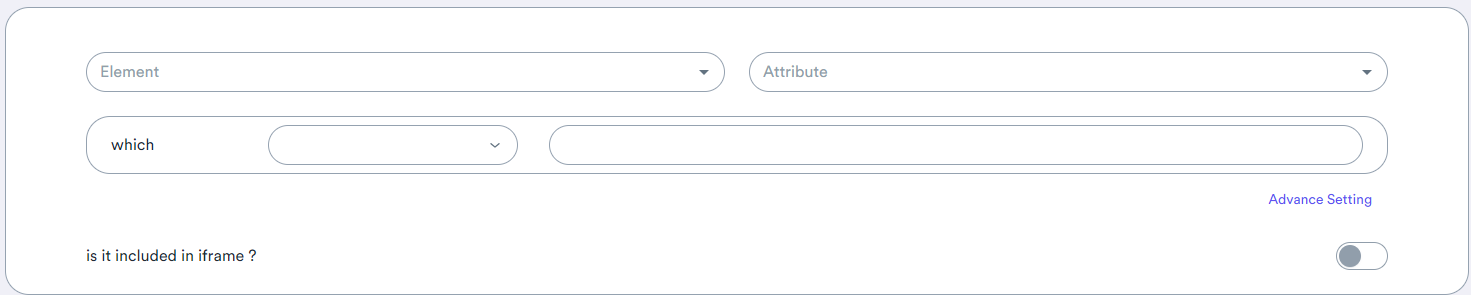
Element conditions
An HTML element has a tag name and attributes — use them to target the section you want.
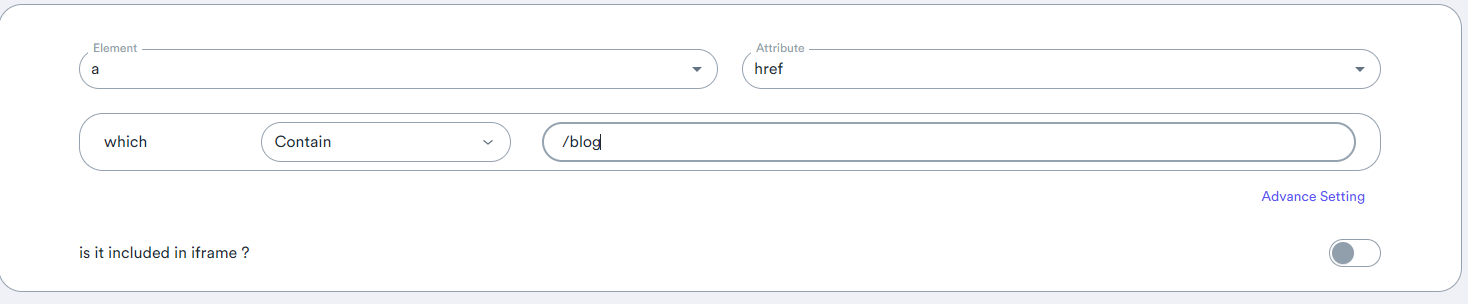
Select the HTML tag and an attribute that identifies the element.
Read more about HTML elements: w3schools HTML elements.
Use an attribute that's exclusive to your target element — otherwise the bot may click the wrong one.
Sites like Google and Facebook use dynamic attribute values. Find a stable attribute or a recurring value, and refresh the page several times to confirm it doesn't change.
If your element is inside an iframe (common on consent/ad forms), enable "It's included in Iframe" and select the iframe element with the same selector. Nested iframe chains are supported.
Advanced element selection
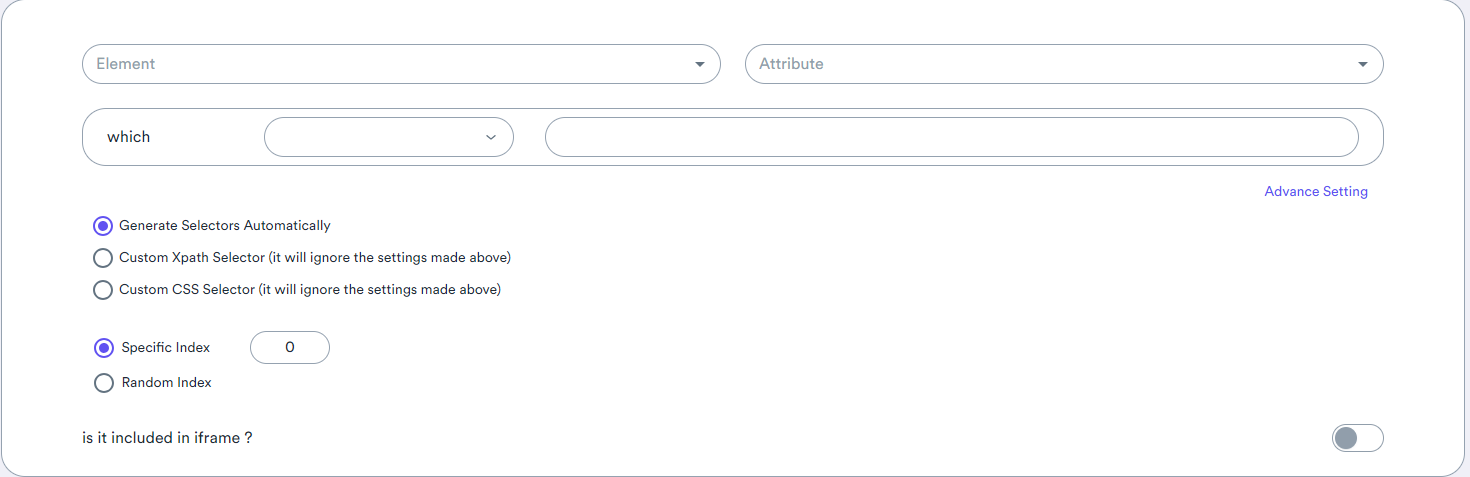
For finer control, click Advance settings in the element section:
Custom CSS selector
If you know CSS selectors, choose Custom CSS selector and enter yours.
Reference: w3schools CSS selectors.
Custom XPath selector
If you know XPath, choose Custom Xpath selector and enter yours.
Reference: w3schools XPath syntax.
Custom element index
When several elements match, enable this to target a specific index — or click a random one.
Indexes start at 0, so the first element is index 0.
Delay Time
Set how long the bot waits before executing the action once the condition is met. To click "About us" 20 seconds after arriving at dalga.dev, enter 20-20 seconds.

Chance
Set how often the action runs when its condition is met. To have the bot not execute every time, enter a percentage below 100.

Order of functions
The bot checks and triggers functions starting from the first one. To have it trigger them in a random order instead, choose the Random option.