Flow Editor
The Flow editor turns the campaign's Tasks step into a visual canvas: instead of a list of form-based tasks, you drag nodes from a palette and wire them into one journey. Switch between Classic and Flow with the toggle at the top of Step 3 — flows and classic tasks are two views of the same campaign, and existing tasks are materialized as nodes when you open the canvas.
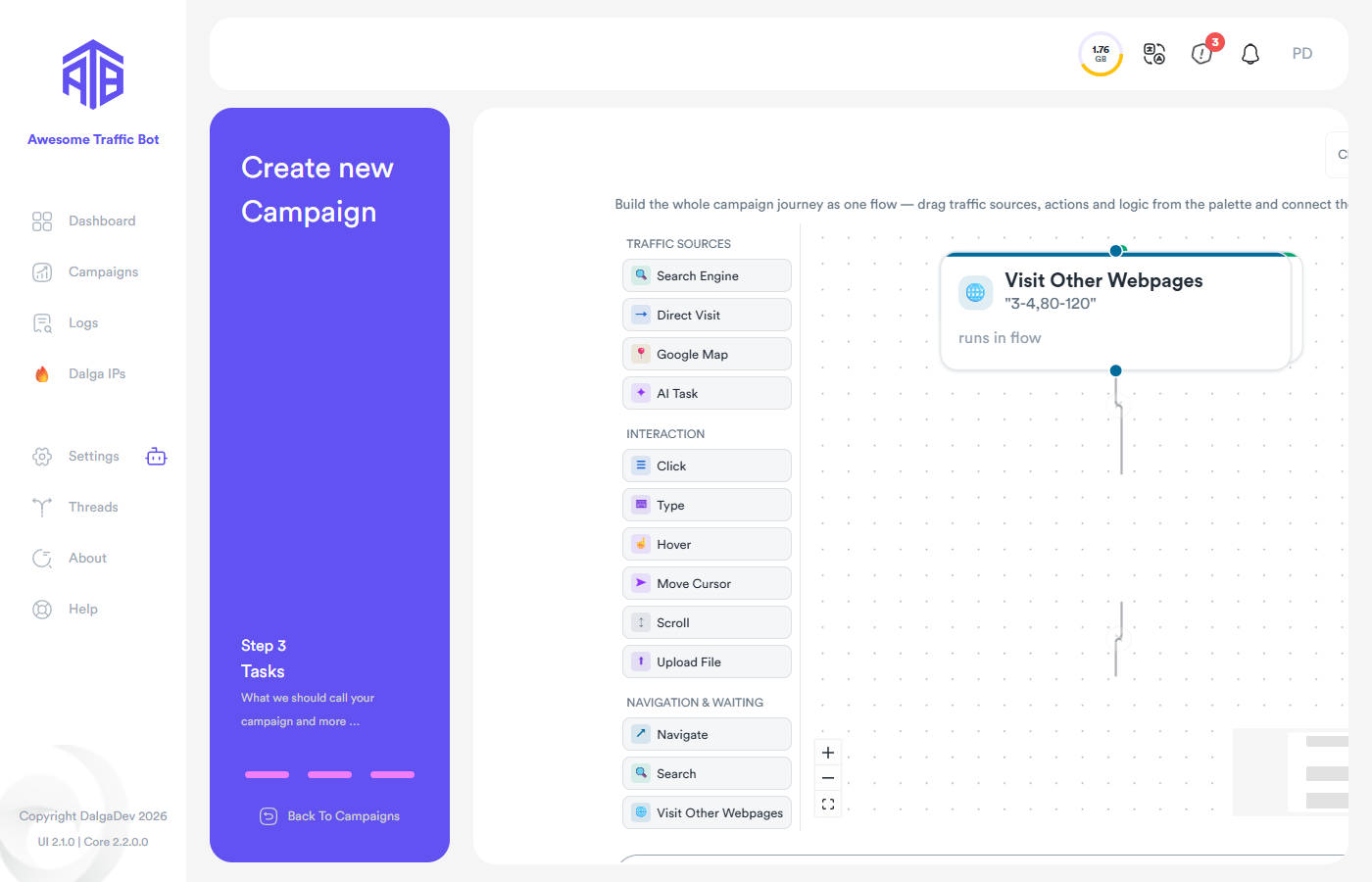
The palette
Traffic sources — where the journey begins:
- Search Engine — search a keyword and click your site (full engine settings included).
- Direct Visit — open a URL directly.
- Google Map — interact with a Maps listing.
- AI Task — let AI drive this part.
Interaction: Click, Type, Hover, Move Cursor, Scroll, Upload File.
Navigation & waiting: Navigate, Search, Visit Other Webpages, Go Back, Referrer Visit, Switch Tab, Close Tab, Wait for Navigation, Wait for Element.
Data & logic:
- Extract → Variable — read a value from the page into a variable.
- Extract All → List — read all matching elements into a list (pair with a For-each Loop).
- Set Variable — compute or assign values with a catalog of expression operations.
- Inject JS — run custom JavaScript.
- If / Else — branch on multi-clause AND/OR conditions.
- Switch / Router — deterministic N-way branching.
- Loop — repeat / until / while / for-each over a list. The loop body automatically returns to the loop node — no back-edge needed.
- Weighted Split — probabilistic branching (e.g. 70% one path, 30% another).
- Delay — wait a number of seconds.
Session & utility: Inject Cookie, Set Cookies, Set Local Storage, Set GEO, Solve Captcha, Screenshot, AI.
Canvas: Note — free-text annotations for documenting your flow.
Editing nodes
Click any node to open its settings panel. A mode node (Search Engine, Direct Visit, …) exposes the same settings as its classic-task counterpart — engine, keywords, CTR, session behavior:
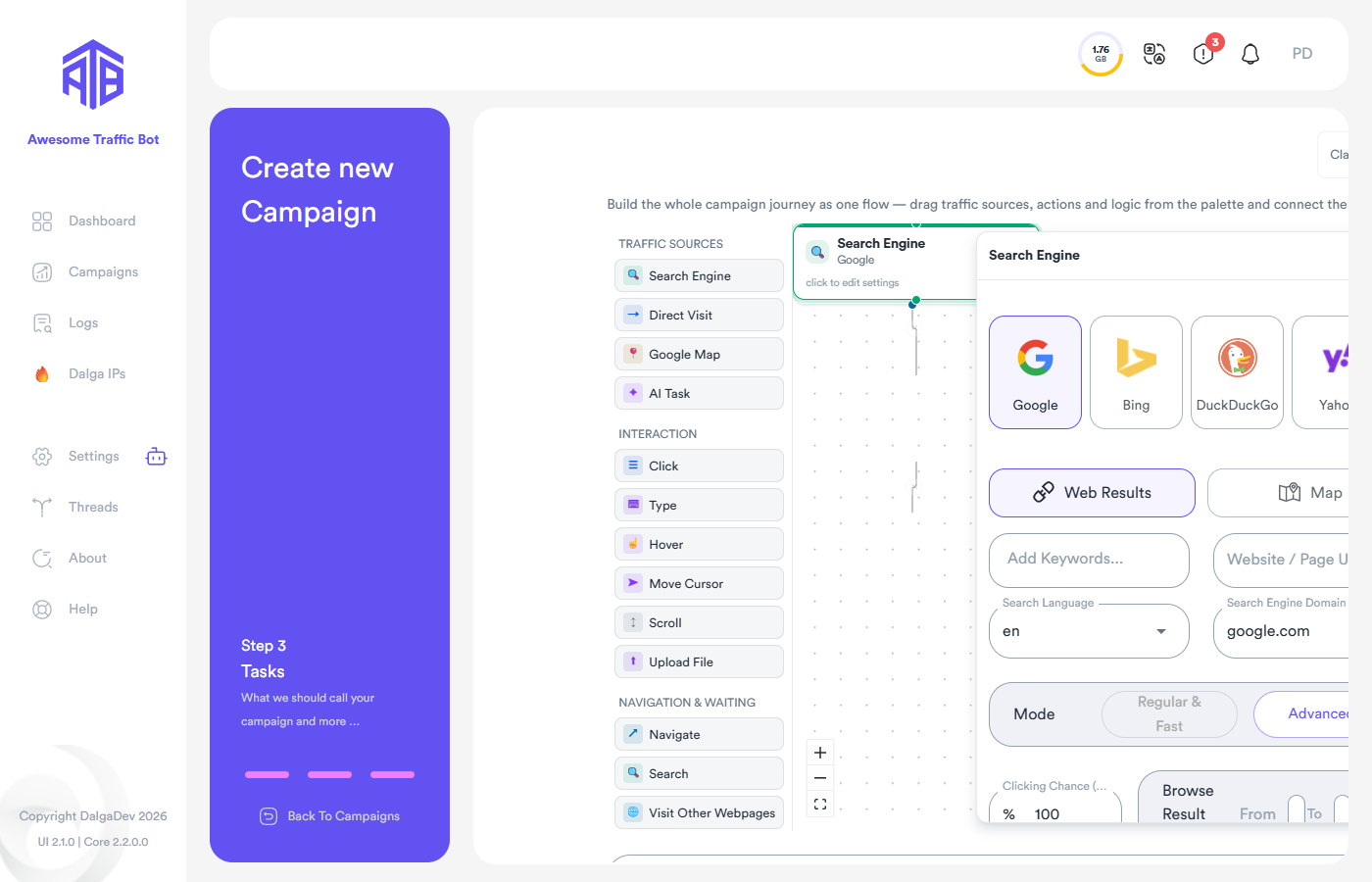
Action nodes configure their target element (Auto / CSS / XPath, attribute matching, index, iframe support — including full nested-iframe chains), plus timing, chance, and occurrence limits.
Formats & examples
The action nodes accept the same input formats as the classic editor:
- Spintax in any typed text —
{hello|hi|hey} theretypes one variant at random. - Cookie injection — paste DevTools JSON or Netscape cookie files, or point at a file/directory. See the full JSON example.
- Target elements — Auto, a CSS selector (e.g.
button.add-to-cart), or an XPath (e.g.//a[contains(text(),"Next")]), with attribute matching, index selection, and nested-iframe support. - Set GEO —
latitude,longitude(see GPS Simulation).
Variables
Values read with Extract → Variable (or assigned with Set Variable) are reusable downstream — Type, Navigate, and condition nodes accept {{variable}} placeholders.
Example flow: Extract → Variable reads a product name into product, then a Navigate node goes to https://google.com/search?q={{product}}, or a Type node types {{product}} into a search box.
Pair Extract All → List with a Loop (for-each) to iterate over every matching element — e.g. read all result links into a list, then loop and click each.
Conditions
If / Else and Switch / Router build multi-clause conditions with AND/OR — for example URL contains /checkout AND element .error does not exist → take the success branch. Weighted Split routes probabilistically instead (e.g. 70% path A, 30% path B) for realistic behavior variety.
Tips
- Tidy re-arranges the graph automatically.
- Advanced Functions attached to a classic task appear as step nodes after their mode node when you open the flow — the two editors stay in sync.
- A screenshot node can save into a chosen folder with timestamped filenames.
- Flows are saved with the campaign; reopening the campaign restores the canvas exactly.