Browsers & Profiles
The browsers
Browsers do the real work in ATB — loading websites, simulating actions, and carrying a believable identity. ATB ships its own anti-detect Chromium-based browser and drives it through a built-in bridge. For every visitor the bot creates a fresh browser environment and changes the hardware fingerprint: GPU vendor, CPU, RAM, user-agent, timezone, WebRTC, and more. Language, timezone, and WebRTC are automatically matched to the visitor's IP.
Browsers are responsible for over 90% of ATB's hardware usage — that's what bounds your thread count.
ATB can also drive an external anti-detect browser — AdsPower (see the dedicated section below) — instead of the internal browser.
User-agents
The device mix you choose in Campaign Settings (Desktop/Mobile/Tablet percentages) is served from a continuously updated user-agent pool — new browser versions arrive from the server without you updating the app.
Browser profiles
Why this feature is useful
Today, a user's history and background matter a lot to how companies judge the quality of a visit. Just as we all trust advice from people we know more than from strangers, big platforms like Google and Facebook weigh the activity of an established, active user far more than that of a brand-new account nobody has a history with.
By default every ATB visitor is a brand-new browser with no history — believable, but "anonymous". The Browser Profile feature lets you keep a browser's profile (cookies, history, saved logins, cache) after a run and reuse it later, so your visitors build credibility and arrive "warmed up" with a real background. Two headline uses:
- Use it with search engines. Run warm-up campaigns first — random keywords loosely related to your target, browsing other sites and watching videos for a few days — then point those warmed-up profiles at your main keywords. Established profiles carry more weight for CTR/SEO. You can even link Google accounts to profiles, so a profile is both active and logged into a Google account.
- Make returning visitors. If part of your plan is sending, say, 20–30% returning visitors, saved profiles make that possible — the same "people" come back with their prior history intact.
How it works
The feature has two modes:
- Create New Profiles + Save — the bot creates profiles while running and stores them into a named profile group.
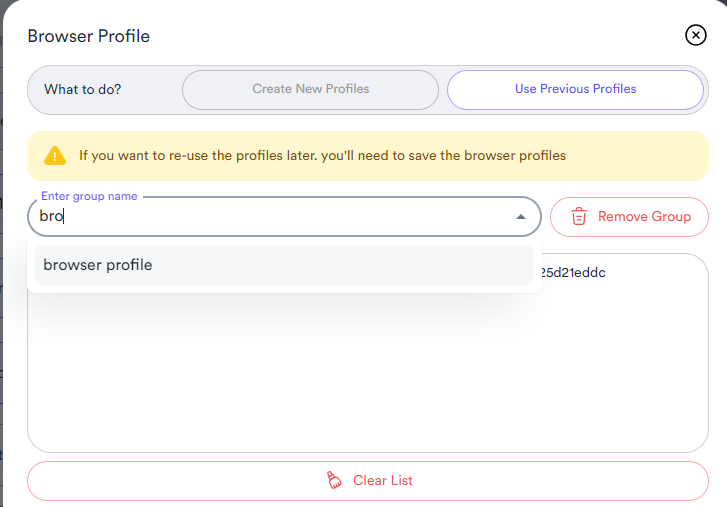
- Use Previous Profiles — later campaigns pick profiles from a saved group, so visitors arrive with history and cookies.
Step by step
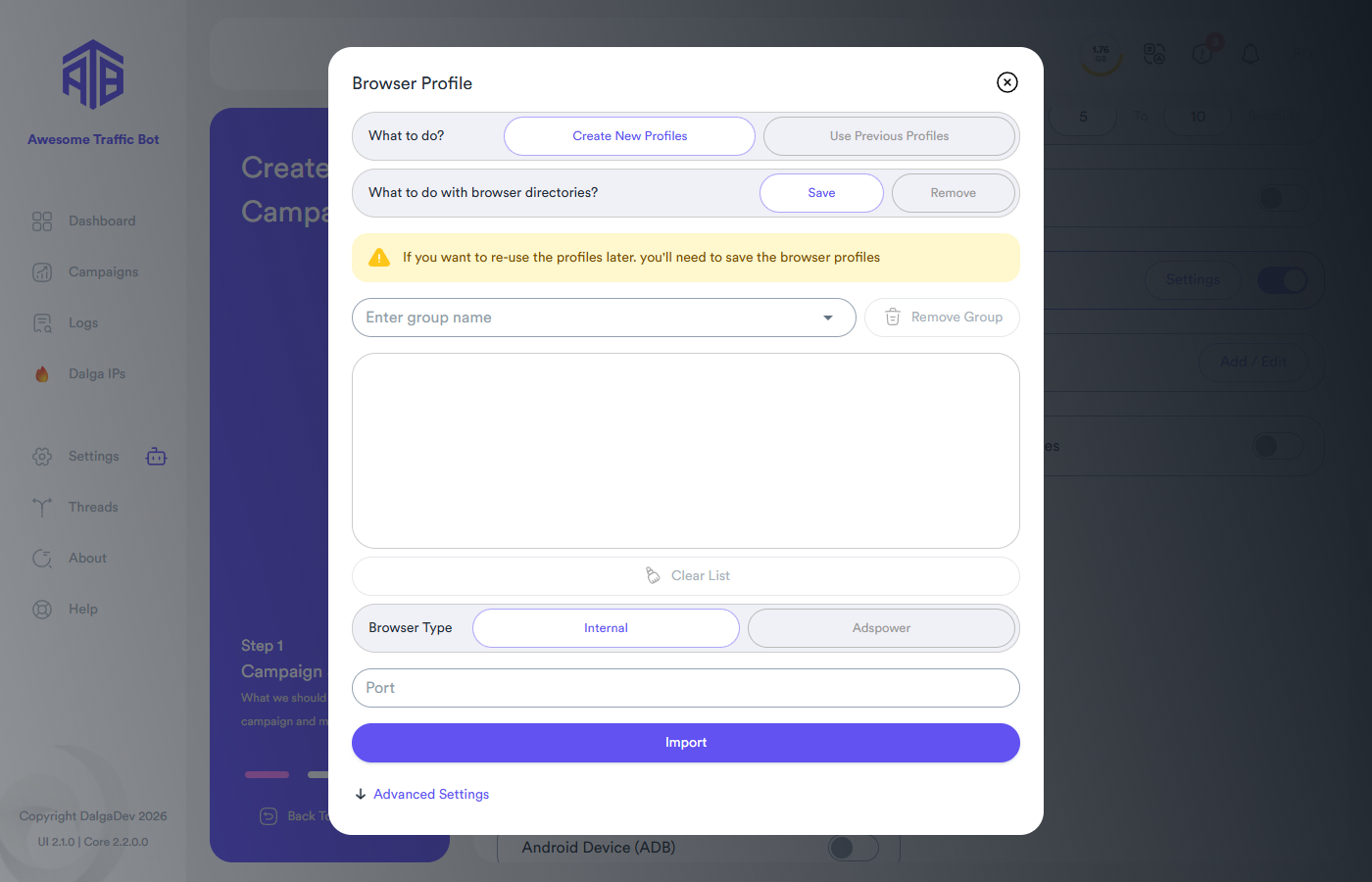
1. Enable it and open the settings. Turn on Browser Profile in Campaign Settings and click Settings to open the dialog:
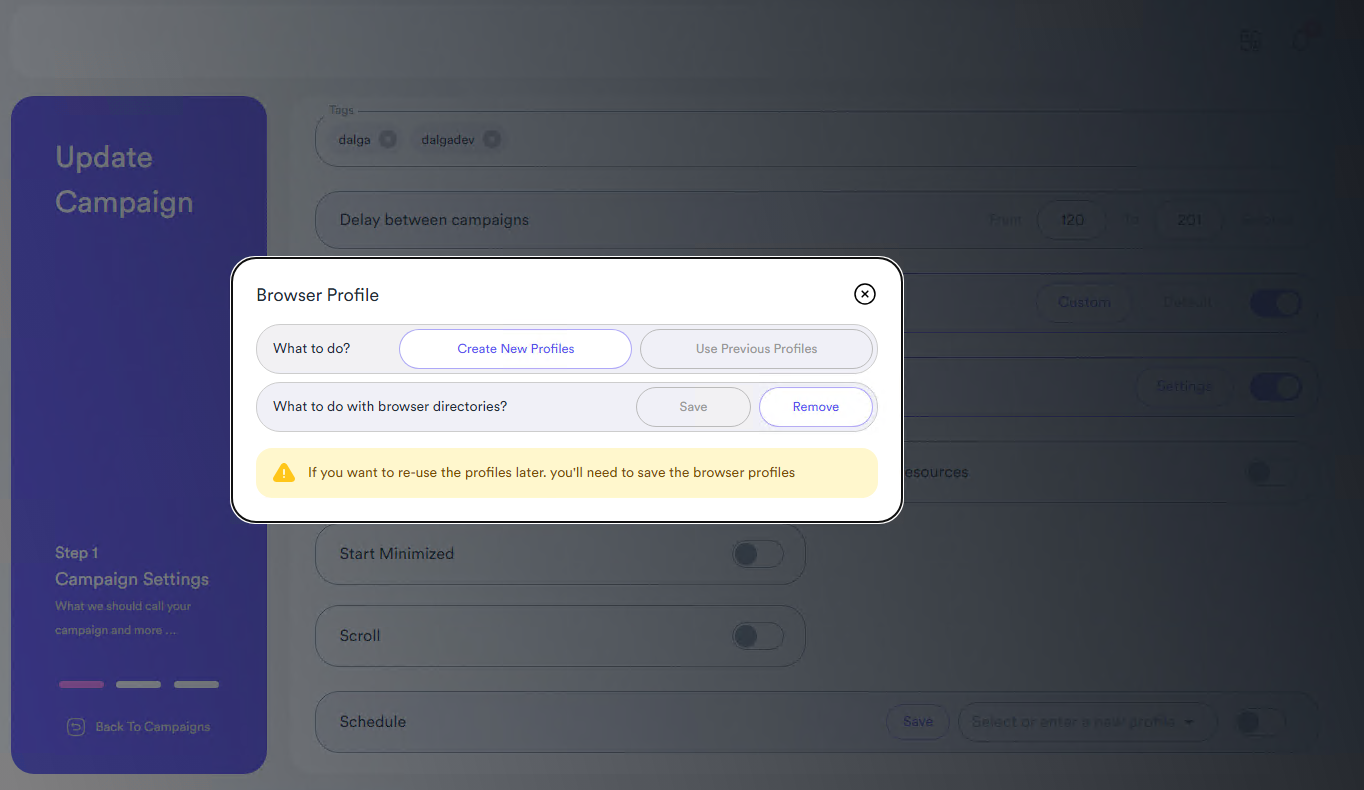
2. Choose what to do. Pick Create New Profiles or Use Previous Profiles, and decide what happens to the browser directories: Save (keep them for reuse) or Remove. To reuse profiles later you must choose Create New Profiles → Save — extra options appear once you do.
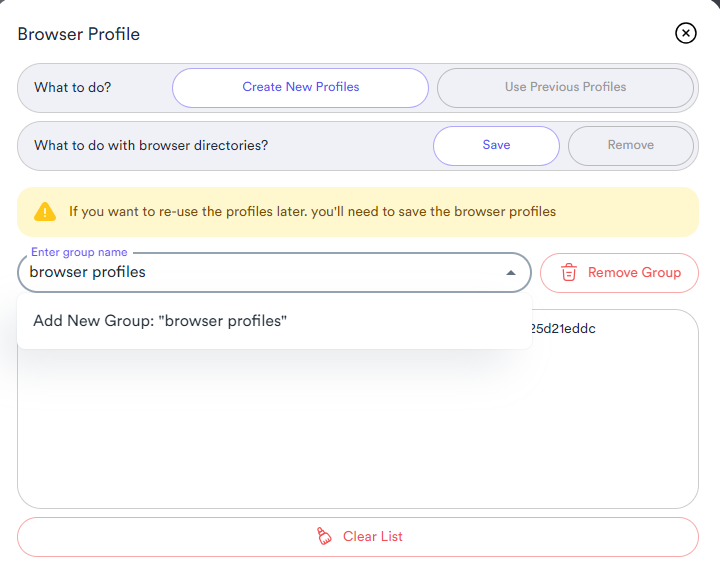
3. Name the profile group. Enter a name for the group the new profiles will be created in (or select an existing group), then click Add to register it.
4. Run the bot. Configure the rest of your campaign — every traffic mode is supported — and start it. The bot creates profiles and adds them to your selected group as it runs.
5. Reuse the profiles. After the profiles have some activity, open the settings again, choose Use Previous Profiles, and select the group. Your next campaign runs on those warmed-up profiles.
Using AdsPower profiles
ATB can run its campaigns inside AdsPower anti-detect browser profiles instead of the internal browser (use the coupon code DALGADEV for up to 55% off).
Setup:
- In the campaign's Browser Profile dialog, switch Browser Type from Internal to Adspower.
- In AdsPower, open its API section and copy the local API port; paste it into the Port field of the dialog.
- Choose whether to create new profiles or reuse existing ones, save the campaign, and start it — ATB opens AdsPower automatically and drives its profiles through the whole journey (searching, scrolling, clicking, browsing).
The full written walkthrough is on the blog: How to use the CTR bot with AdsPower.
Internal browser vs AdsPower
| Internal browser | AdsPower | |
|---|---|---|
| Setup | Nothing to install — works out of the box | AdsPower app + API port; separate subscription |
| Fingerprints | Continuously updated anti-detect fingerprints; enough for most users | More versatile, fully configurable hardware fingerprints (user-agents, resolutions, fonts, WebGL) |
| Profile management | Managed by ATB (groups, storage folders) | AdsPower's own multi-profile manager — ideal when you also run accounts there |
| Best for | Most CTR/traffic campaigns | Account-heavy work where each profile needs a distinct, hand-tuned identity |
Where profiles are stored
Profiles land in ATB's own folders by default, but the location is configurable at three levels (most specific wins):
- Profile group — a per-group folder override (the group's saved-profiles folder is its storage location).
- Campaign — the Advanced Settings section of the Browser Profile dialog.
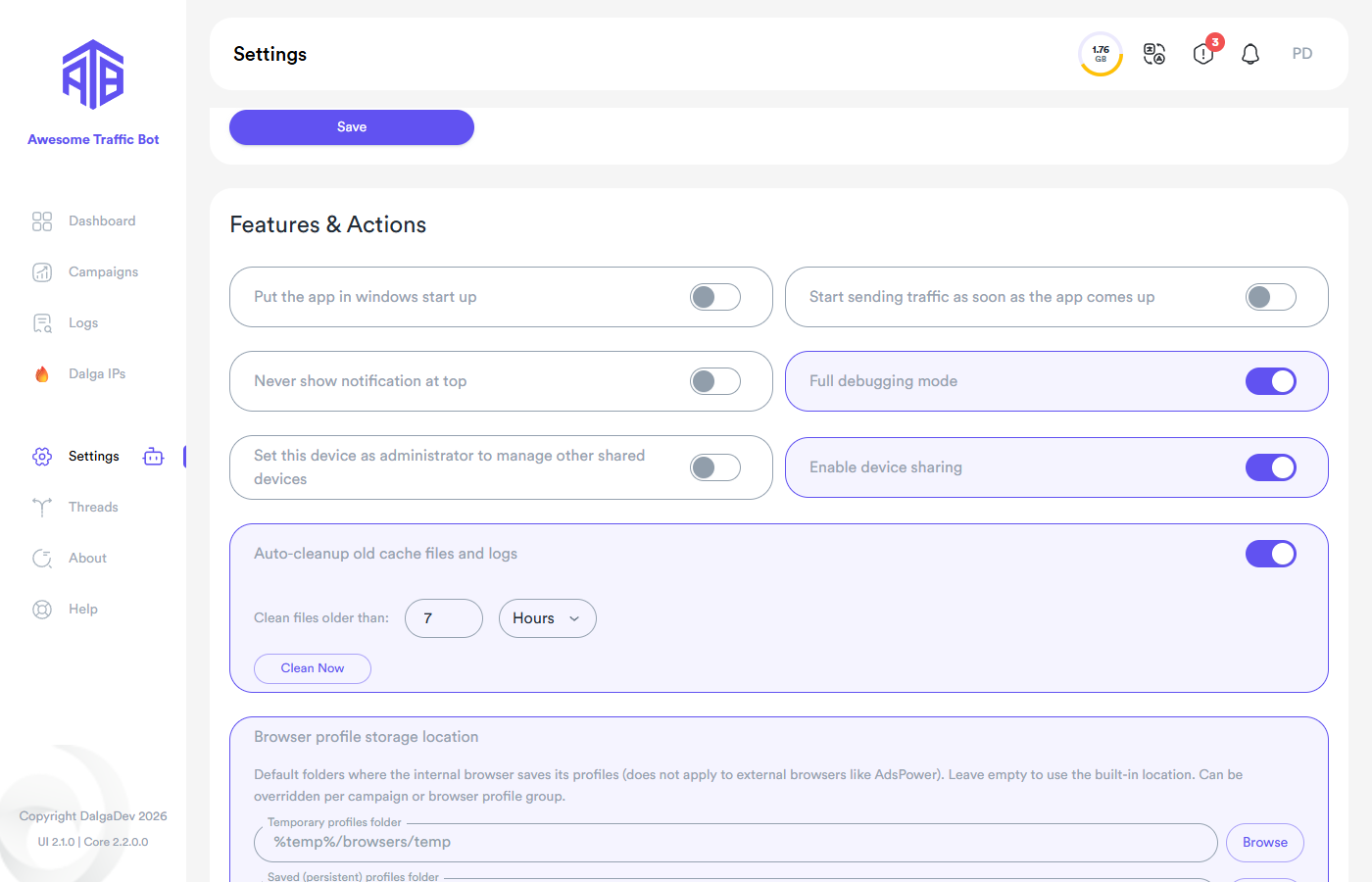
- Global default — Settings → Browser profile storage location, with separate folders for temporary profiles (the per-visitor throwaways) and saved (persistent) profiles.
This matters when your system drive is small or you want profiles on a fast disk. The setting applies to the internal browser only (not AdsPower).