Step 3: Identity
Step 3 decides how the campaign browses, signs in, and handles ads. Everything here is saved on the campaign, not globally.
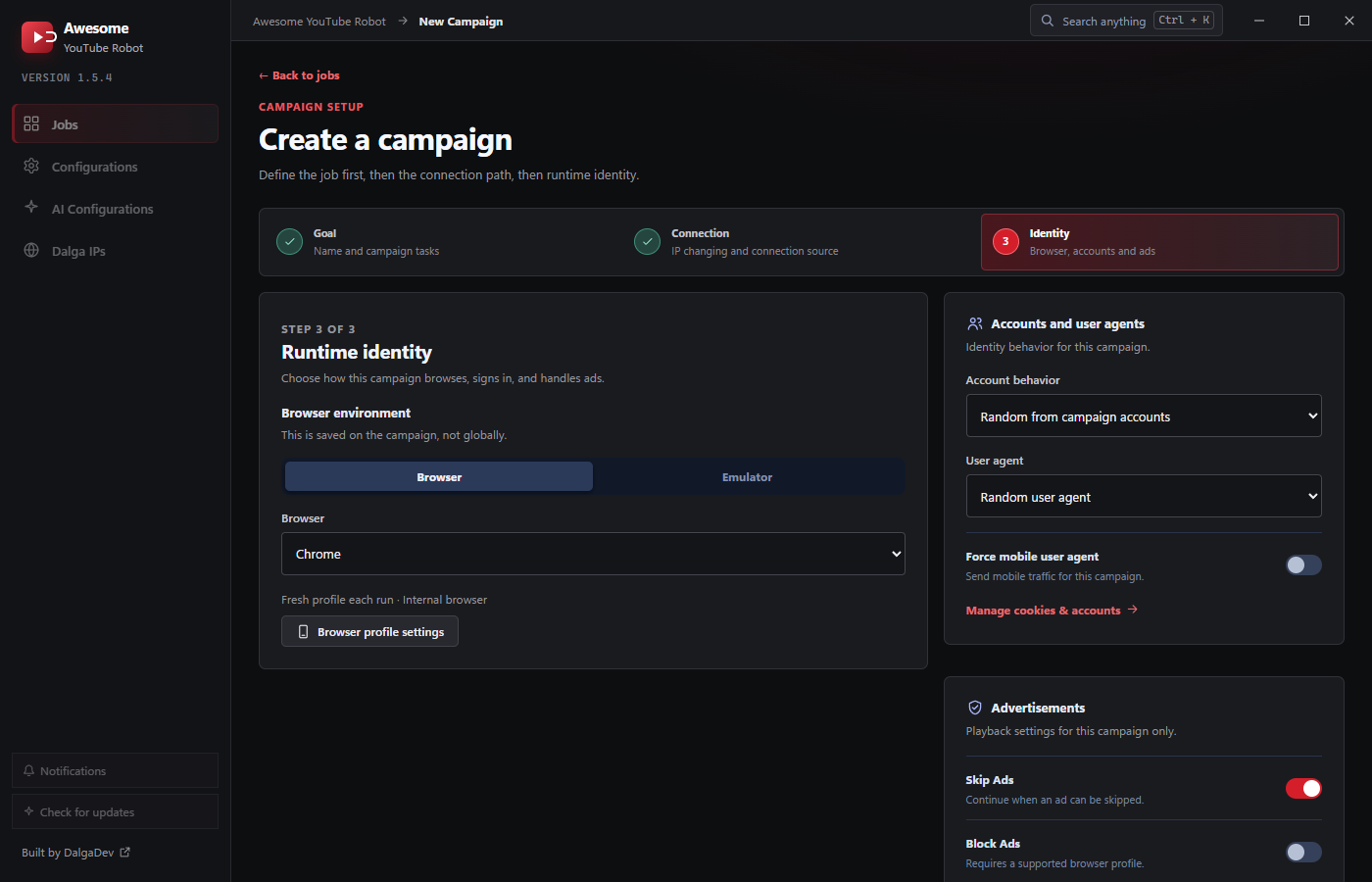
Browser environment
Pick the runtime. Full details in Browsers, Emulators & Profiles:
- Browser: an anti-detect desktop browser. Choose Chrome or Firefox. The footer shows the current profile strategy (e.g. Fresh profile each run · Internal browser).
- Emulator: a real Android emulator: Memu (Beta) or LD Player.
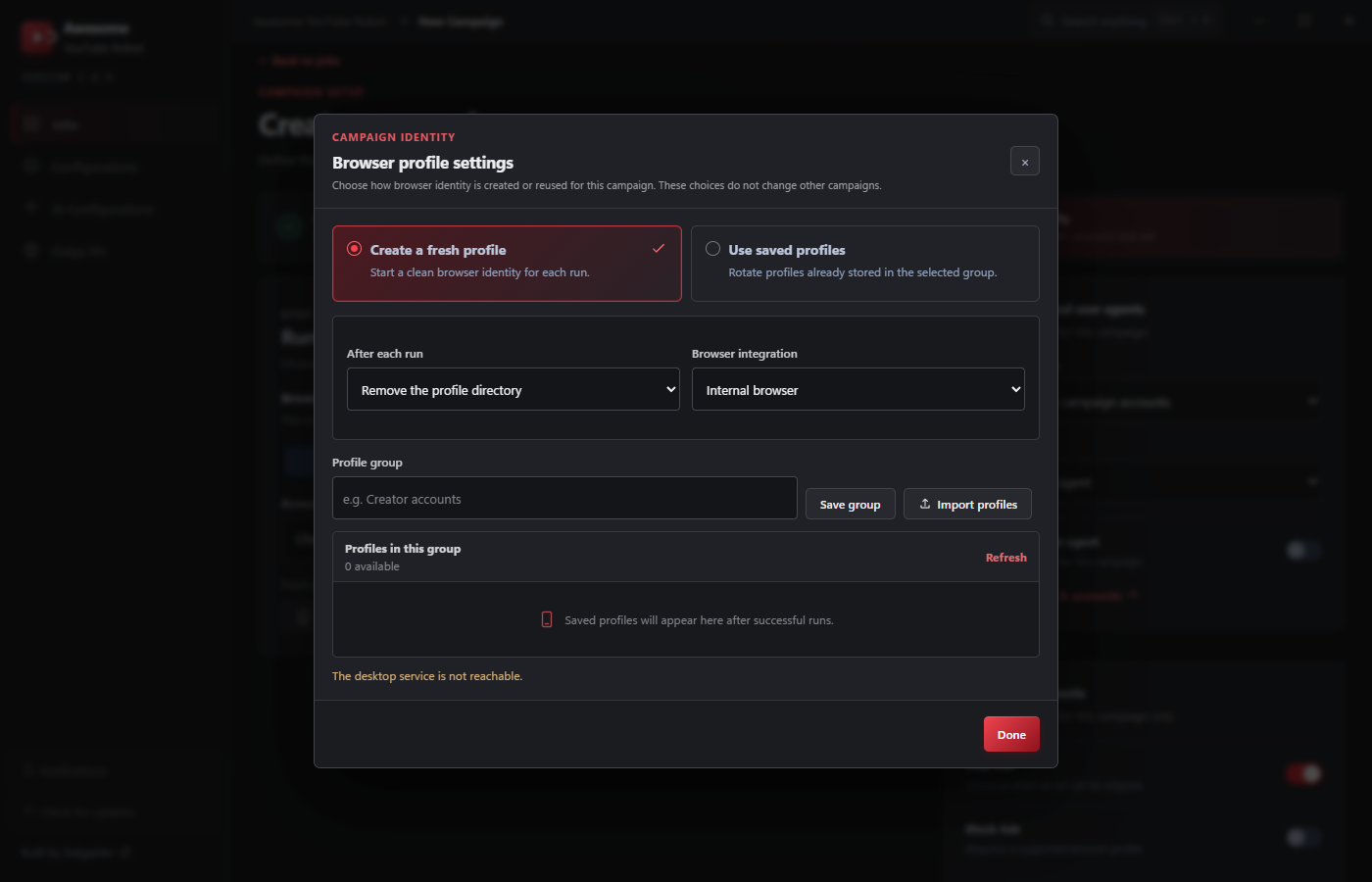
Browser profile settings opens the profile dialog (fresh vs. saved profiles, profile groups, and the AdsPower integration):
Accounts and user agents
Controls the campaign's sign-in identity:
- Account behavior: Random from campaign accounts, Use in listed order, or Do not log in. Engagement modes (Like/Comment/Subscribe) need an account, so use one of the first two.
- User agent: a selector with two choices: Random user agent or Fixed desktop user agent. Choosing Fixed desktop reveals a Fixed user agent text field where you paste the exact UA string (e.g.
Mozilla/5.0…). - Force mobile user agent: a separate on/off toggle beside the selector; turn it on to send the campaign as mobile traffic.
- Manage cookies & accounts: opens the account/cookie workspace for this campaign, where you import accounts and cookies and run the checker. See Accounts, Cookies & 2FA.
Advertisements
Playback ad handling for this campaign:
- Skip Ads: continue as soon as an ad can be skipped. On by default.
- Block Ads: block ads outright (requires a supported browser profile). Off by default.
Finish the builder with Create campaign.