Browsers, Emulators & Profiles
Each visitor needs a believable, isolated identity. AYB gives you two runtime environments and a profile system, all chosen per campaign on Step 3: Identity.
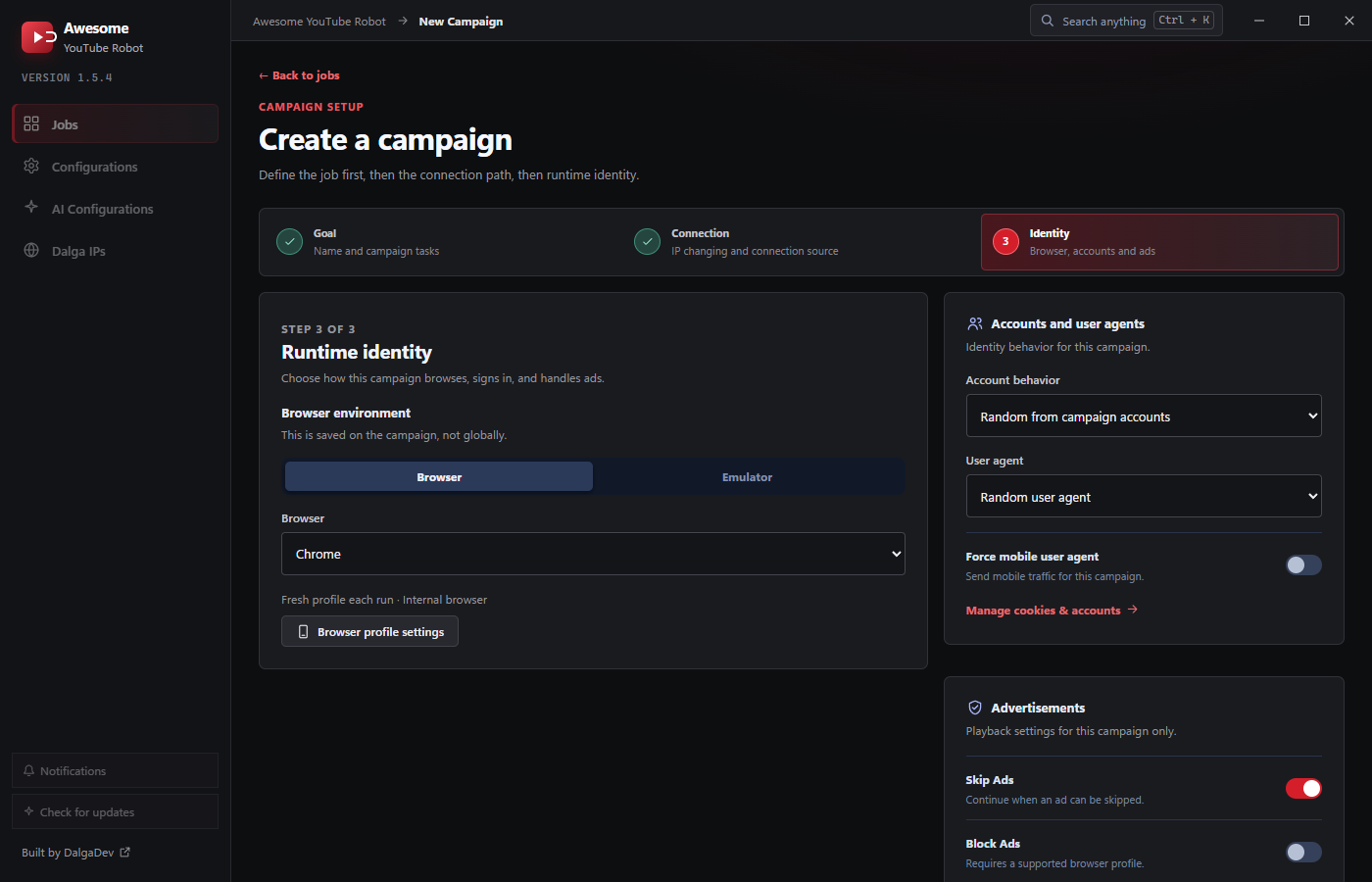
Browser
The default environment. AYB drives an anti-detect browser with a changed hardware fingerprint (GPU, user-agent, timezone, WebRTC…) matched to the visitor's IP.
- Chrome or Firefox: pick the engine per campaign.
- Internal browser: AYB's own bundled anti-detect browser (the default).
- AdsPower integration: drive AdsPower anti-detect profiles instead of the internal browser, for hand-tuned fingerprints and multi-profile management. Provide AdsPower's local API port and a profile group in Browser profile settings (see Using AdsPower profiles).
Emulator
Instead of a desktop browser, run the campaign on a real Android emulator: actual mobile YouTube on a virtual device:
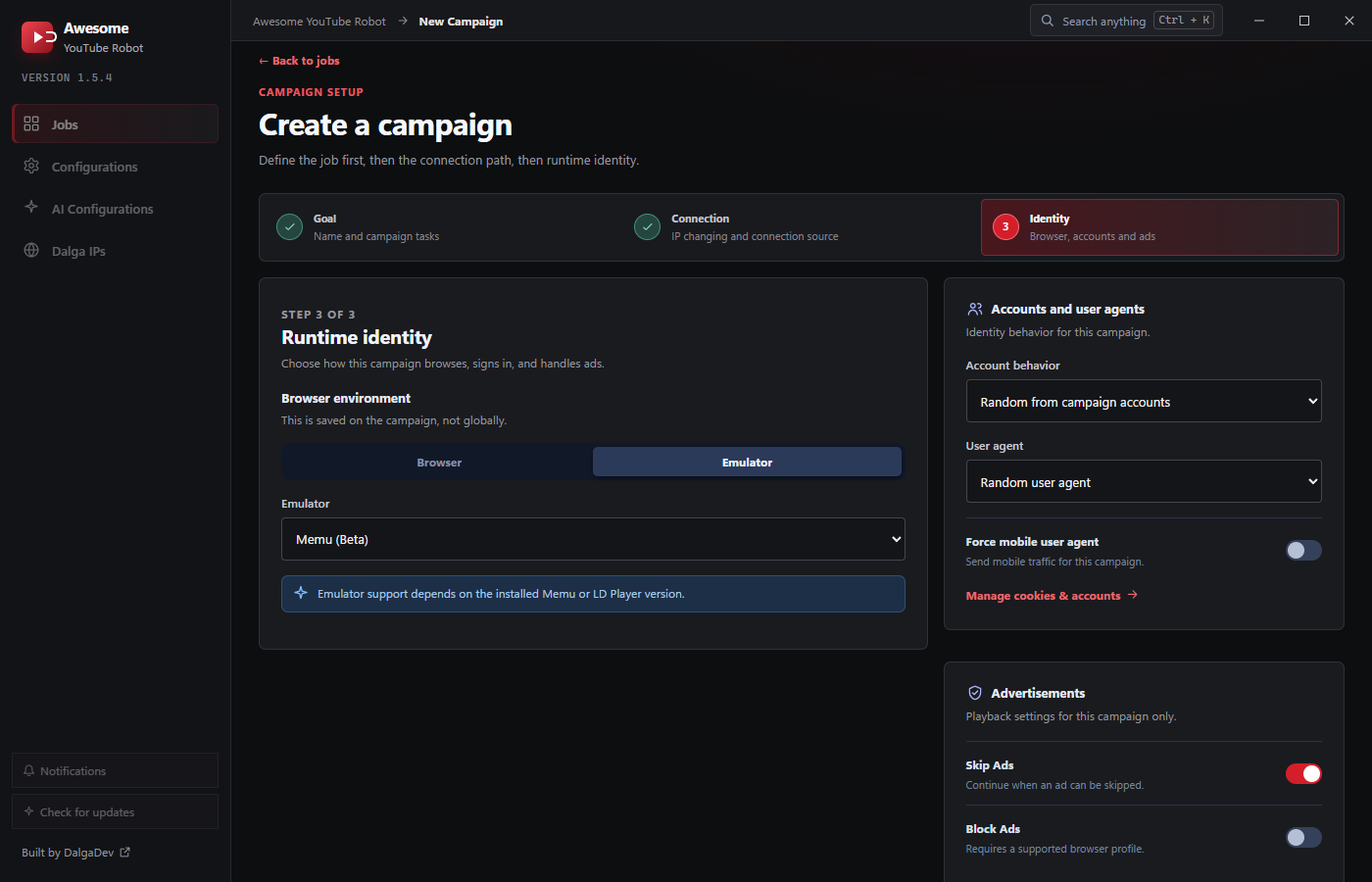
- Memu (Beta) or LD Player: AYB drives whichever you have installed.
- Emulator support depends on the installed Memu/LD Player version.
Browser profiles
By default every run uses a fresh profile: a clean identity that's discarded afterwards. To build credibility (warmed-up, logged-in, returning viewers) you can save and reuse profiles instead. Open Browser profile settings on Step 3:
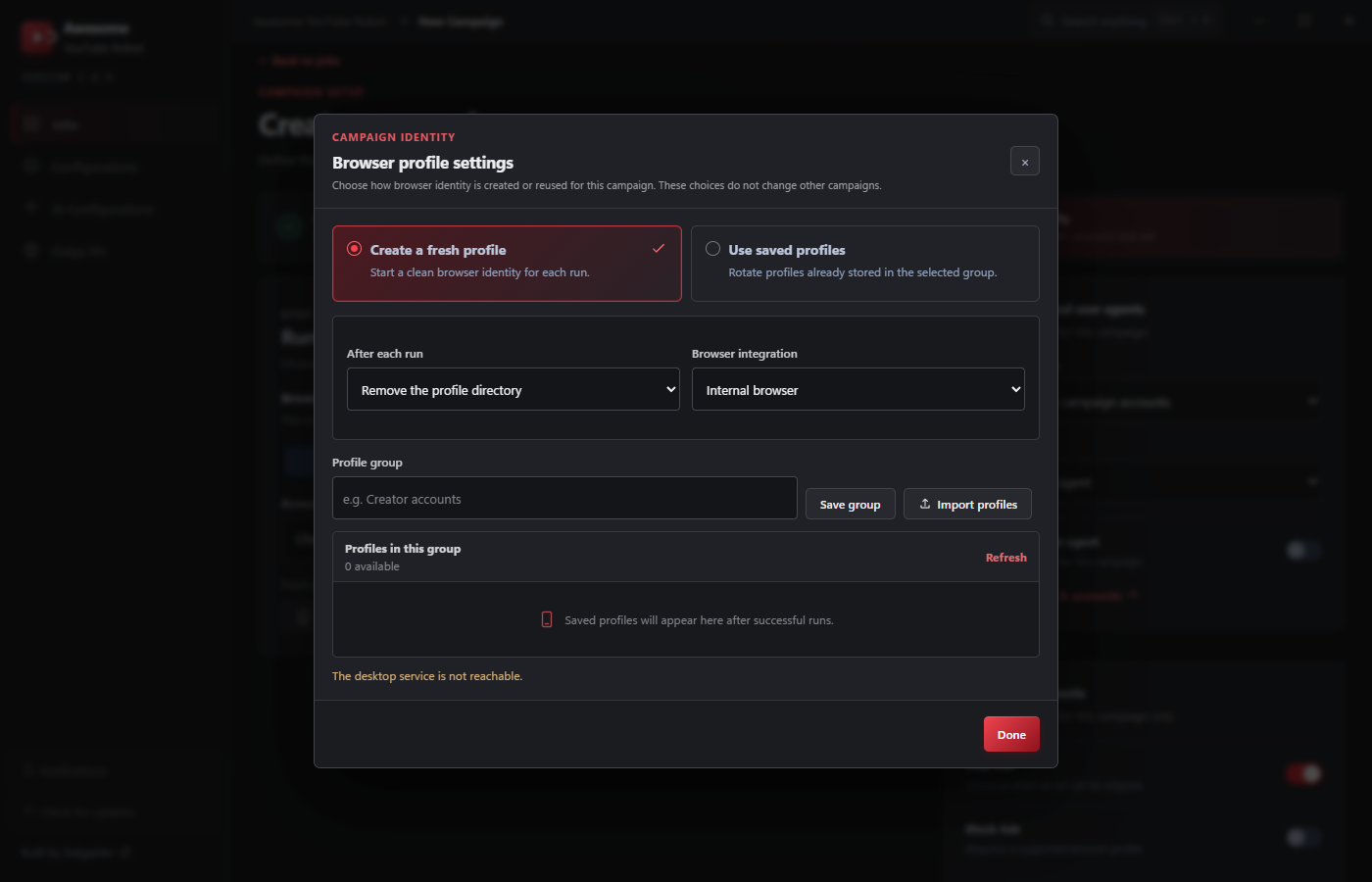
- Create a fresh profile: clean identity each run. Choose what happens after each run: Remove the profile directory or Save profile into the group.
- Use saved profiles: rotate profiles already stored in a profile group.
- Browser integration: Internal browser (the default) or AdsPower. Choosing AdsPower reveals an Integration port field (1–65535) that pre-fills 50325, AdsPower's standard Local API port, so it usually just works out of the box.
- Profile group: type a group name (or pick an existing one from the list), Save group, and Import profiles from a
.txtlist. Saved profiles appear under Profiles in this group after successful runs; Refresh reloads them.
Deleting a profile group or an individual profile only removes AYB's stored record of it. The actual browser profile directory on disk is left untouched.
Saved profiles that stay signed into YouTube accounts make likes, comments, and subscribes far more credible than fresh cookies each time. See Accounts.
Using AdsPower profiles
AYB can run its campaigns inside AdsPower anti-detect browser profiles instead of the internal browser. Ideal when you want the most configurable, hardened browser fingerprints for a YouTube bot. Use the coupon code DALGADEV for up to 55% off.
Setup, in Browser profile settings on Step 3:
- Set Browser integration to AdsPower.
- In AdsPower, open its Local API and confirm the API port. AYB pre-fills 50325 (AdsPower's default); change it only if your AdsPower uses a different port.
- Pick a profile group and save the campaign. AYB opens AdsPower automatically and drives its profiles through the run.
Internal browser vs AdsPower
| Internal browser | AdsPower | |
|---|---|---|
| Setup | Nothing to install; works out of the box | AdsPower app + Local API port; separate subscription |
| Fingerprints | Continuously updated anti-detect fingerprints; enough for most channels | Fully configurable hardware fingerprints (user-agents, resolutions, fonts, WebGL) |
| Profile management | Managed by AYB (groups, saved profiles) | AdsPower's own multi-profile manager; ideal if you also run accounts there |
| Best for | Most view/engagement campaigns | Account-heavy work where each identity needs hand-tuning |
User agents
On Step 3 you also pick the user agent from a selector (a random one or a fixed desktop UA), and there's a separate Force mobile user agent toggle beside it to send the campaign as mobile traffic.