Control ATB from AI Agents (MCP)
Since ATB 2.3, the app is an MCP server. MCP (Model Context Protocol) is the standard way AI assistants use outside tools. Once connected, an assistant such as Claude Code, Claude Desktop, Cursor, or VS Code can manage your campaigns for you while you describe what you want in plain words.
What an agent can do
- Campaigns: create, edit, and validate campaigns, then start, stop, or restart them.
- Workflows: build and edit Flow editor workflows, and check them before saving.
- Test a workflow: make one real test visit and get a step-by-step trace back. Test visits are never counted in your statistics or campaign counters. You can't run one while that campaign is running.
- Read: statistics, logs, notifications, threads, and the license status.
- Dalga IPs: look up available locations. New campaigns made by an agent use Dalga IPs by default.
A test visit opens a real browser with the campaign's connection and device settings and visits the site once. It just isn't counted.
Connect your AI assistant
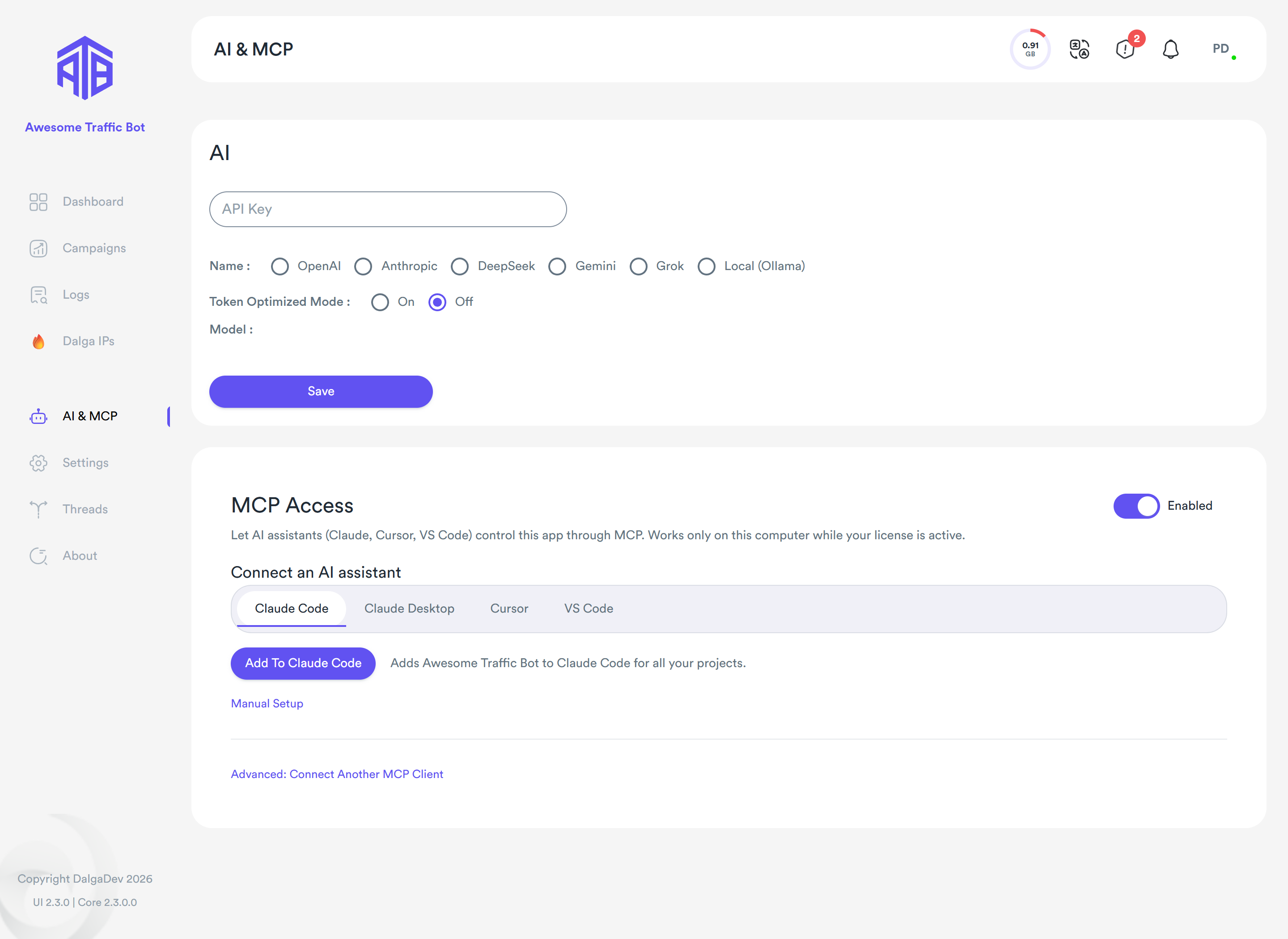
- In the ATB app window, open the AI & MCP tab in the sidebar.
- On the MCP Access card, turn the switch to Enabled.
- Under Connect an AI assistant, pick your client's tab: Claude Code, Claude Desktop, Cursor, or VS Code.
- Click Add to … for that client and follow the message:
- Claude Code: added for all your projects. Start a new Claude Code session to use it.
- Claude Desktop: quit Claude completely (right-click its tray icon → Quit) and open it again.
- Cursor and VS Code: the editor opens with the server ready to install. Confirm there.
The client must be installed on the same computer. If the app can't find it, or you prefer to do it yourself, click Manual setup for the exact command or config snippet to copy.
How the connection works
- Claude Code connects over HTTP to
http://localhost:7007/mcpwith your access key. - Claude Desktop, Cursor, and VS Code connect through the ATB program on this computer, so no key is stored in their settings.
Other MCP clients
Open Advanced: connect another MCP client at the bottom of the card. It shows the MCP URL, the access key (Show, Copy), and the header to send (Authorization: Bearer <key>) for clients that connect by URL (Streamable HTTP).
Anyone with the key can control the app, so keep it private. Regenerate creates a new key; the old one stops working immediately. Afterwards, click Add to Claude Code again and update any client you connected by URL. Claude Desktop, Cursor, and VS Code keep working.
Example prompts
Once connected, ask in plain words. For example:
- Create a Google search campaign for example.com with 200 visits a day on Mon–Fri.
- Show me yesterday's statistics for all my campaigns.
- Add a step that accepts the cookie banner, then test the workflow once.
The agent shows you what it did. Check new campaigns in the Campaigns page before you rely on them.
For a full walk-through with more example prompts and a workflow built step by step, read the Awesome Traffic Bot 2.3 release post.
Limits
- This computer only. MCP works only on the computer where ATB runs, and only while the app is running.
- Active license required. If your license ends during a session, the next call is refused and running campaigns stop.
- Managed in the app. MCP access can only be turned on and set up from the ATB desktop app on this computer.