Organizing & Housekeeping
Archiving campaigns
Move finished or paused campaigns to the Archived tab of the Campaigns page — out of the way, but fully restorable with their statistics. Archived campaigns can also be exported. Use the archive action on a row or bulk-archive from the selection menu.
Sorting, search, and tags
- Click column headers in the campaign list to sort (name, status, sent views, …).
- The search box filters by name/keyword/URL.
- Tags (set in Campaign Settings) label campaigns; the type tabs (Search Engine / Direct / AI) filter by traffic type.
- Table layout preferences are remembered per browser.
Templates & cloning
- Start new campaigns as a clone of an existing one (wizard Step 0).
- Clone action on any row duplicates a campaign.
- Restart All (⋮ menu) resets sent-visitor counters of selected campaigns.
- Bulk edit applies changes to many campaigns at once (modify vs. overwrite modes).
Auto-cleanup
Running many visitors creates temporary browser profiles, caches, and logs. Under Settings → Features & Actions:
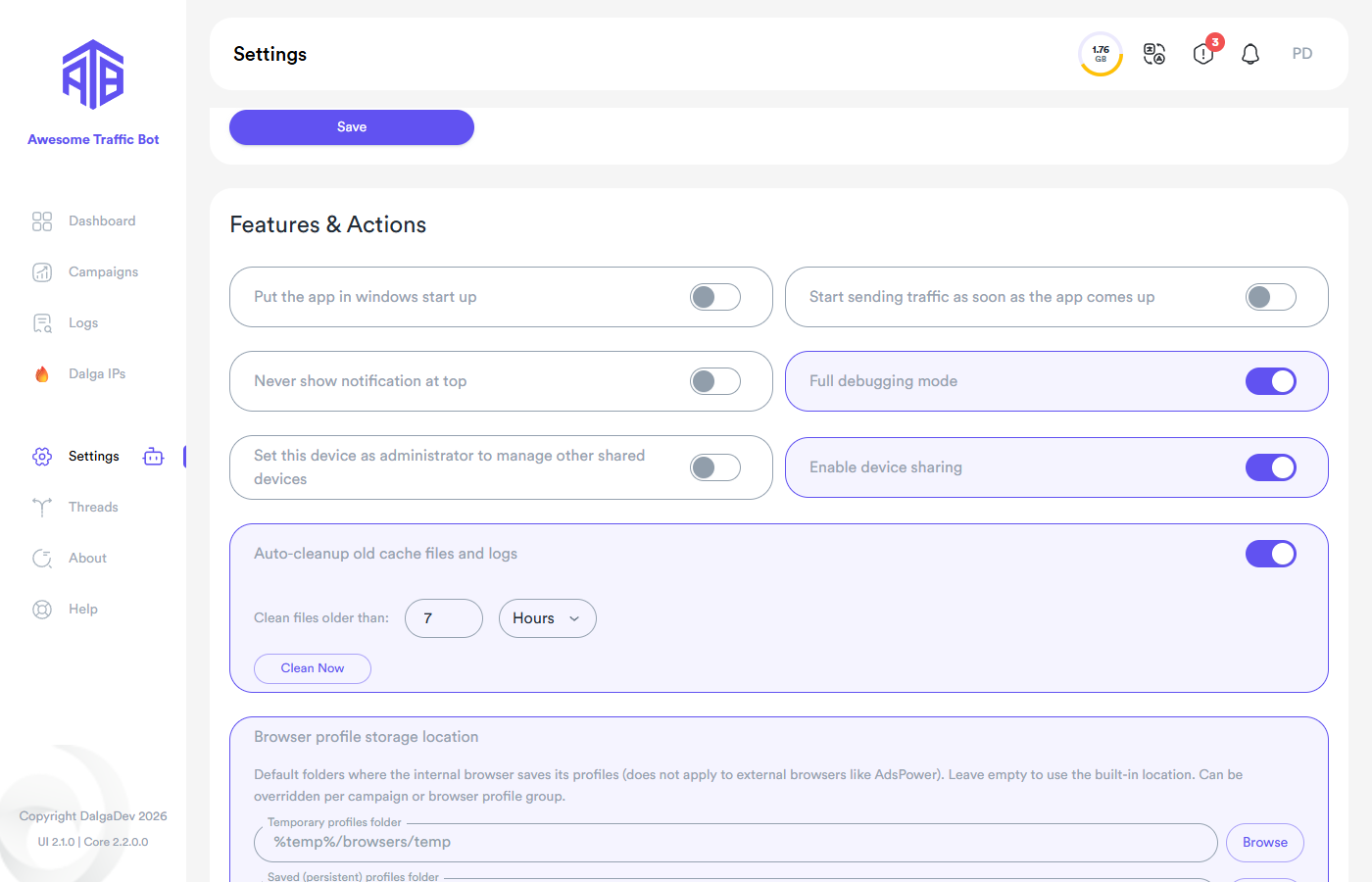
- Auto-cleanup old cache files and logs — on a schedule, delete files older than the configured age (hours/days).
- Clean Now — run the cleanup immediately.
Storage locations
Configure where browser profiles are stored (globally, per campaign, or per profile group) — see Browsers & Profiles.
Reset options
At the bottom of the Settings page:
- Reset And Clear All Campaigns And Their Settings — wipe all campaigns.
- Clear All Caches — clear application caches.
Both are destructive; export your campaigns first if in doubt (Import & Export).