Quickstart: Your First Campaign
This walkthrough creates a simple View campaign that sends watch-time to a video. It takes a few minutes. Every screen is covered in depth in Building Campaigns.
Prefer video? The full channel walkthrough covers the same ground:
1. Create a campaign
On the Jobs page click New campaign. You land on Step 1: Goal.
2. Name it and define the task
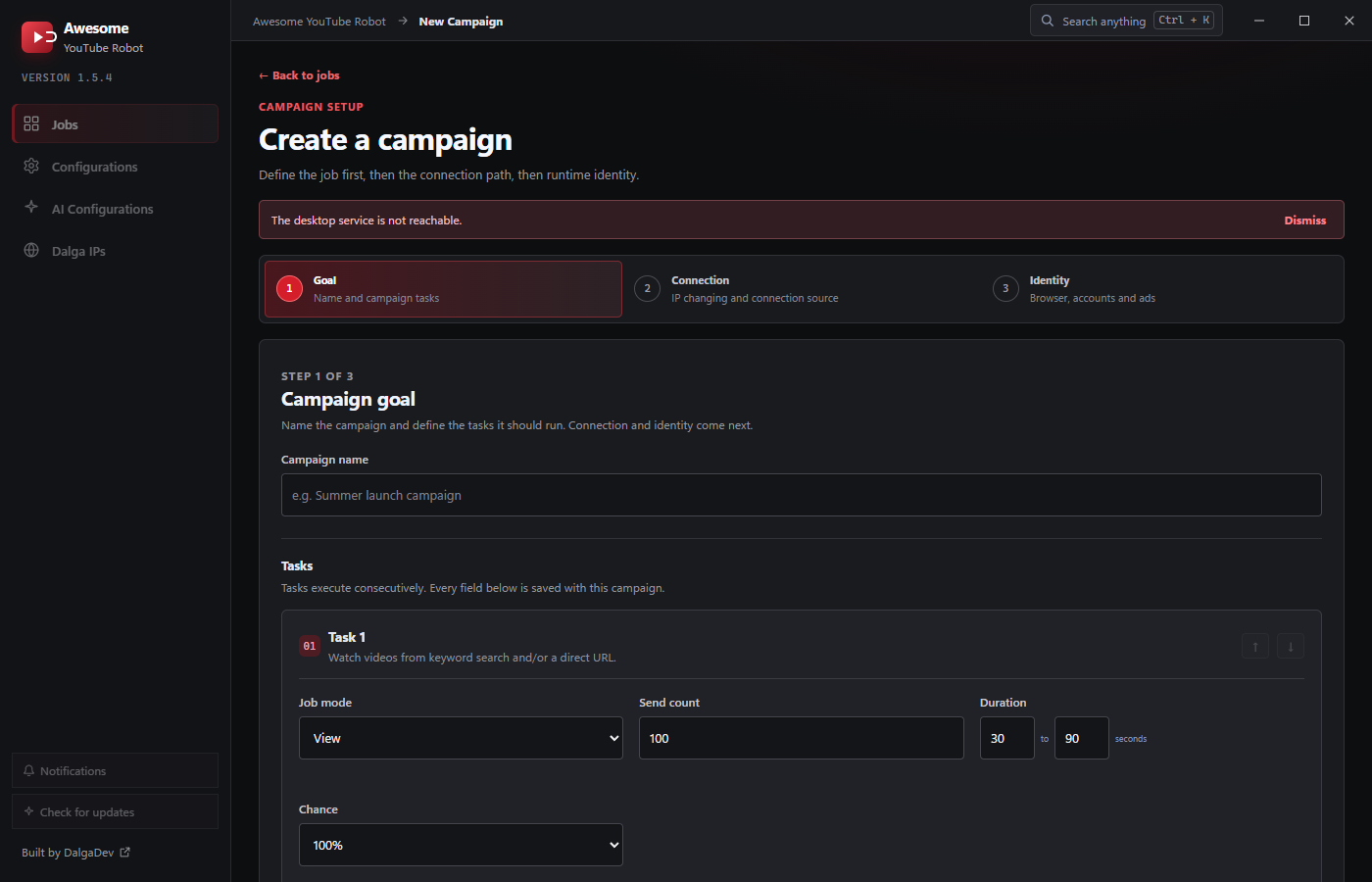
- Give the campaign a Campaign name.
- Leave Job mode on View.
- Set Send count (how many visitors) and a Duration range in seconds (how long each visitor watches).
- Under View target, either paste a YouTube URL, or type a Keyword and let AYB find the video via Suggested videos, YouTube search, or Google.
Click Continue.
3. Choose a connection
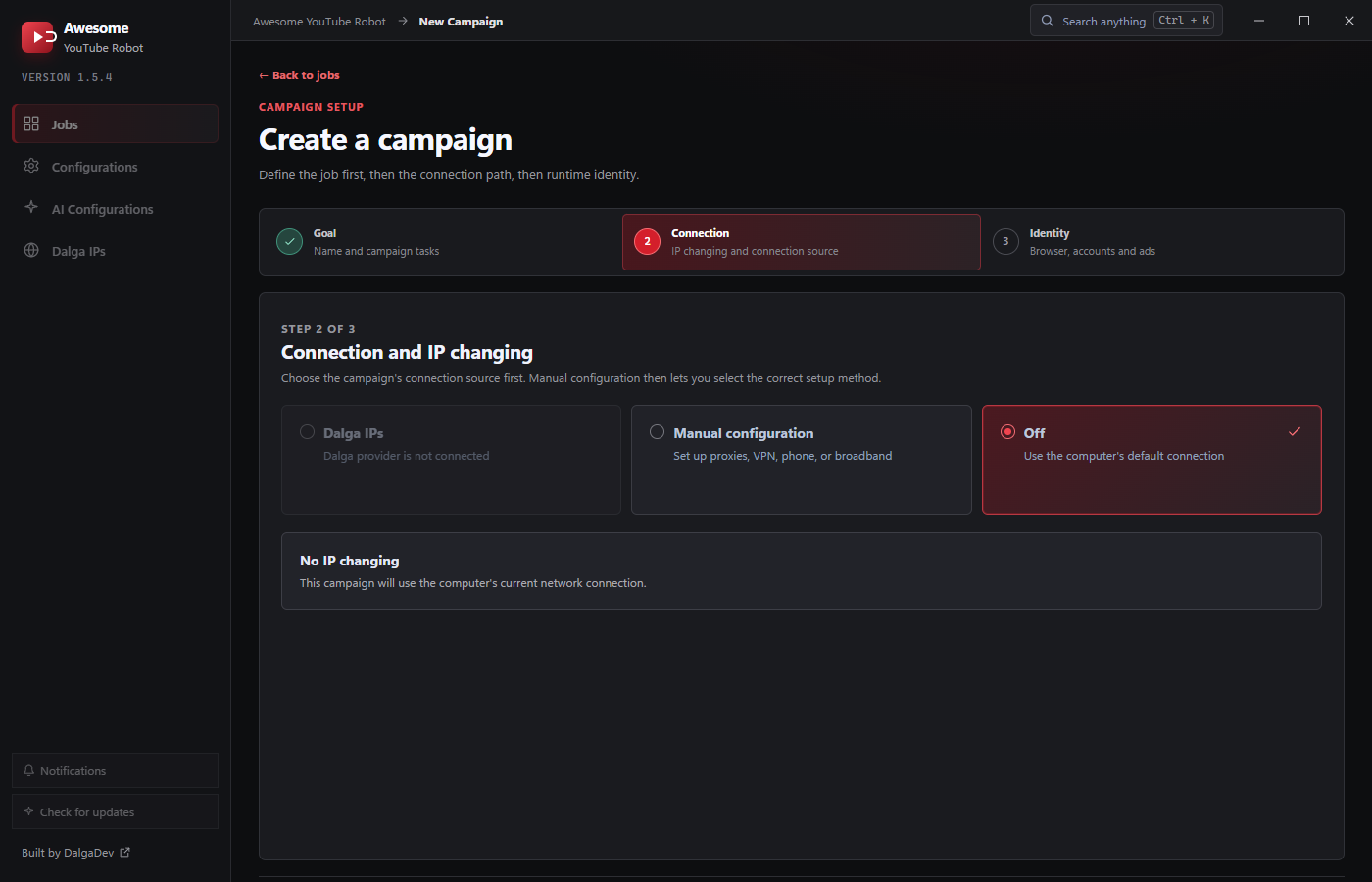
On Step 2: Connection, pick:
- Off: use your computer's own connection (fine for a first test).
- Manual configuration: bring your own proxies, VPN, phone, or broadband.
- Dalga IPs: built-in residential proxies (when the provider is connected).
Click Continue.
4. Set the identity
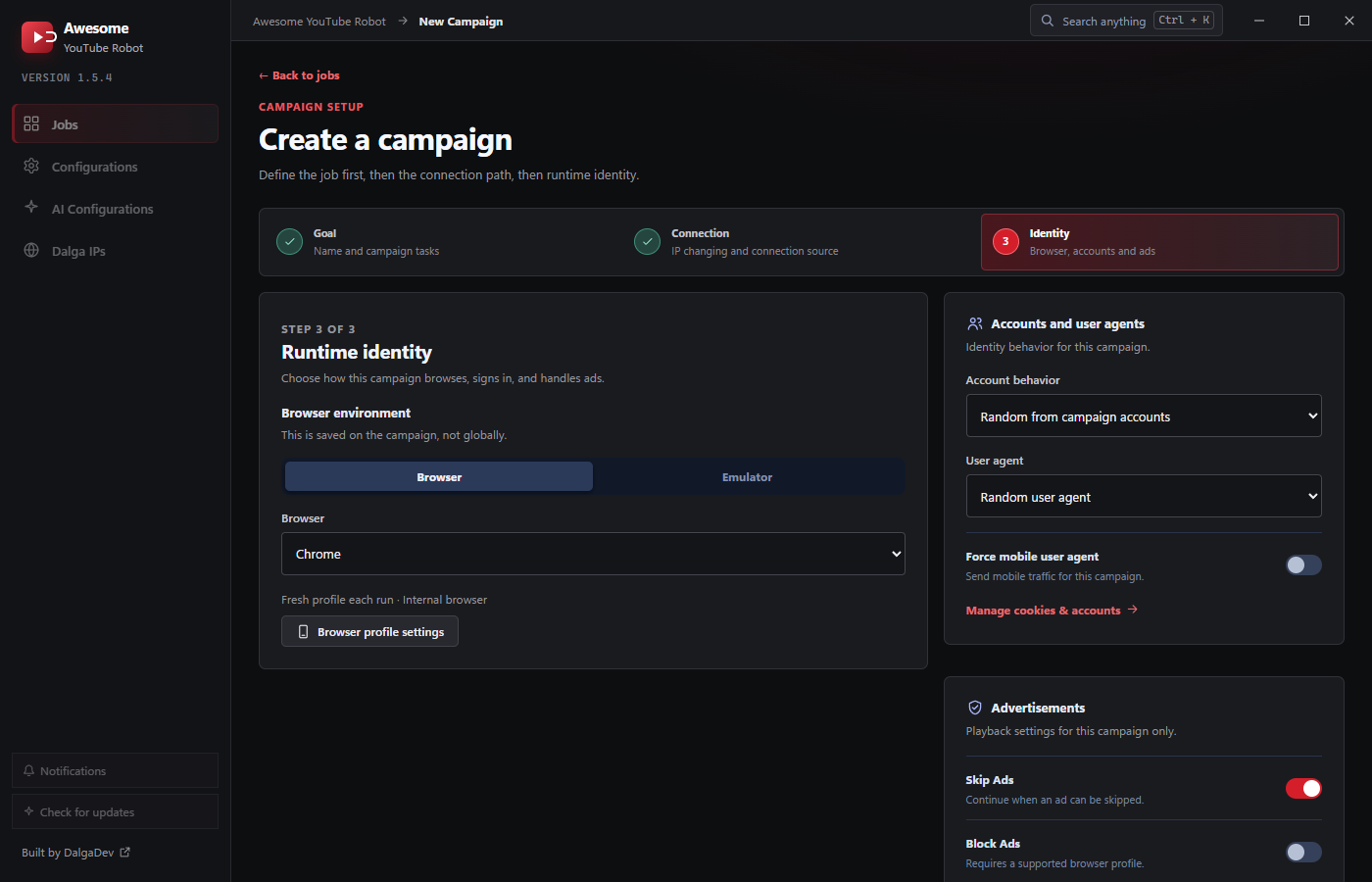
On Step 3: Identity, the defaults are a good start: Browser → Chrome, a fresh profile each run, a random user agent, and Skip Ads on. For likes, comments, or subscribes you'd add accounts here. For a plain View campaign you can leave it as is.
Click Create campaign.
5. Start sending
Back on the Jobs page, press Start sending (bottom-right) to run everything, or start your campaign from its row. Threads launch browsers, open the video, and watch it like real viewers. Watch progress in the Tasks sent counter, the campaign's status, and the Overall progress bar.
Where to go next
- Add likes, comments, and subscribes → Engagement modes and Accounts.
- Make sessions look human with browsing between actions → Random act.
- Send many concurrent viewers → Threads.
- Use warmed-up identities → Browsers, emulators & profiles.