Search Engine Tasks
In a search engine task the bot opens the chosen engine, types your keyword like a human, browses the results, finds your website, and clicks it.
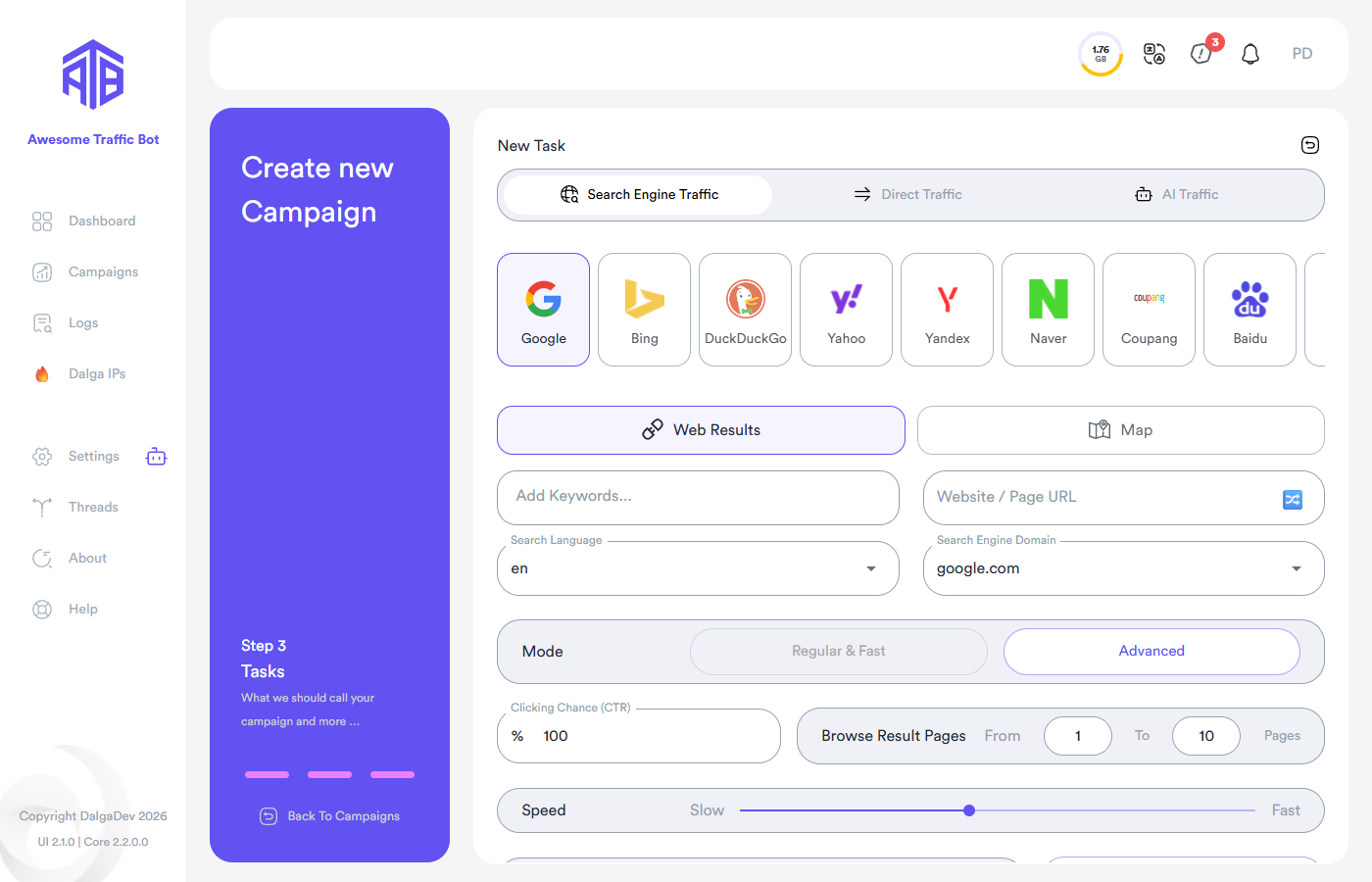
Engine and service
Pick one of: Google, Bing, DuckDuckGo, Yahoo, Yandex, Naver, Coupang, Baidu, Amazon, AYB (YouTube). Google additionally offers Web Results and Map sub-services, and Naver has four of its own — see Google Maps mode and Naver services below.
Keywords (weighted)
Add one or more keywords as tags (press Enter or comma after each). Keywords support weights — click the dumbbell icon on a keyword chip and type a number; a keyword with weight 3 is picked three times as often as one with weight 1:

Select several chips (drag or Ctrl-click) and right-click for bulk weight editing on large lists.
Video walkthrough: Keyword Weight in CTR Campaigns.
Website / Page URL and Random Click mode
Enter the address the bot should find and click in the results. The bot looks for results that contain the text you enter, so write the address as it appears on the results page — if your domain shows without www. in the results but you type www., the bot won't find it.
Prefer entering only your domain (e.g. example.com) unless a competitor uses a similar address — this also covers AMP variants of your pages. If you need strict matching instead, enable the exact match option (see Browse Result Pages).
Building a multi-task campaign to use as an import template? Write the keyword as {keyword} and the target as {website} — the bot substitutes them when importing keywords/websites from a text file.
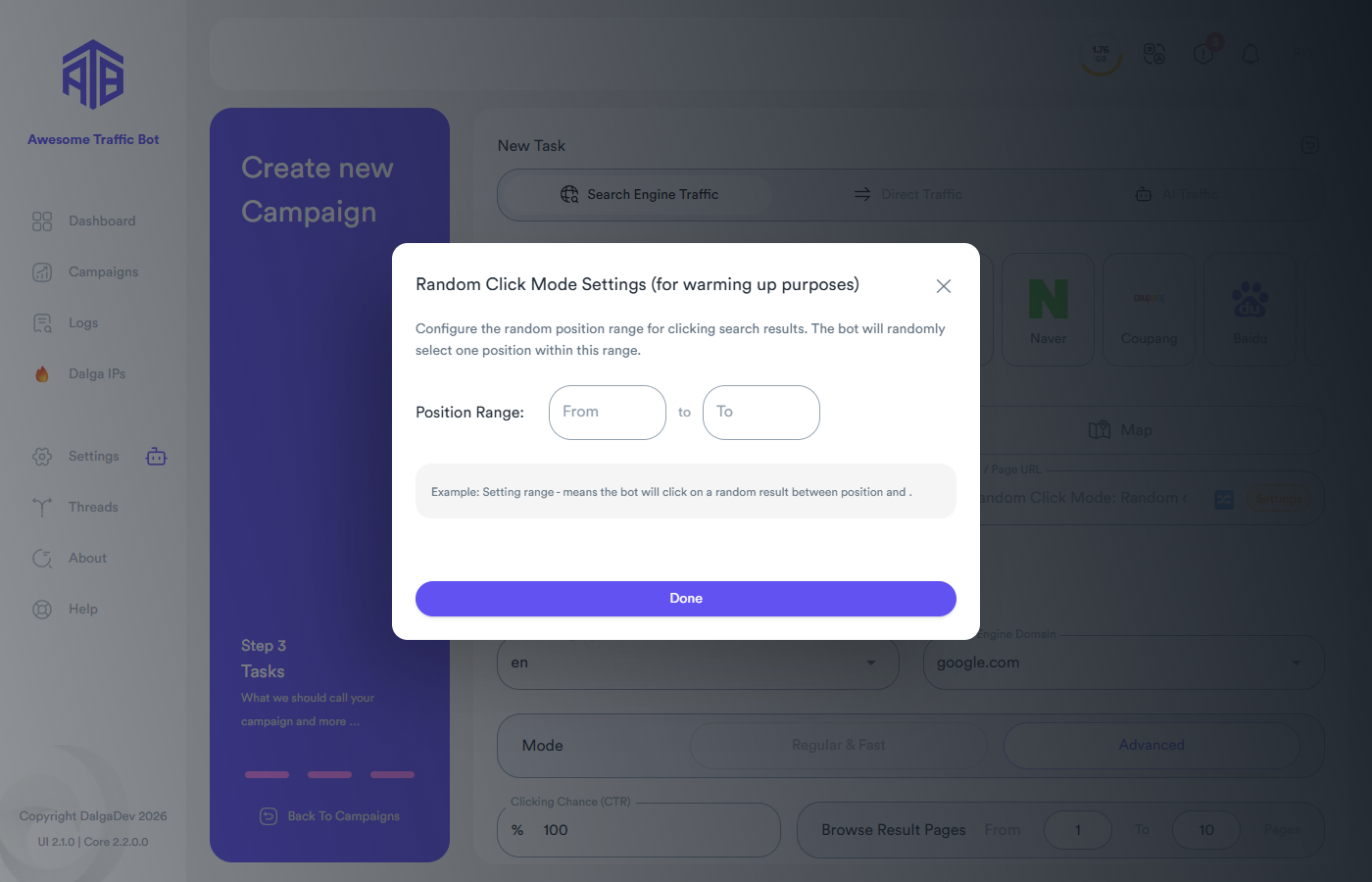
On Google, Bing, and Map services the field carries a 🔀 Random Click mode toggle — instead of a fixed target, the bot clicks random results/businesses, which is great for warming up profiles:

When it's active, the Settings chip opens the position-range dialog — the bot picks a random result between the From and To positions:
Search Language & Search Engine Domain
The language injected into the browser (use correct language codes — uk is Ukrainian, not English!) and the engine's country TLD (google.de, google.co.uk, …). The bot still auto-matches browser language/timezone to the IP.
Mode: Regular & Fast vs Advanced
- Advanced performs the full human simulation: the bot goes to google.com, types your keyword, scrolls and browses each results page, finds your website and clicks it. This has the better SEO impact.
- Regular & Fast goes directly to a results page listing 100 results and clicks your website there — much faster, less realistic.
Clicks register on the search engine in both modes; choose Advanced for impact, Regular for speed. The choice only exists for Google — every other engine always runs in Advanced mode.
Your traffic will appear as Organic in Google Analytics, but the keyword won't be shown — Google has encrypted keyword data since 2011.
Clicking Chance (CTR)
The percentage of sessions that actually click your result. At 50%, half the sessions search and browse but don't click — sessions skipped this way show "skipped – Because of CTR % settings" in the status.
Browse Result Pages & Speed
How many result pages (From–To) the bot browses looking for your site, and how fast it moves. There's also an option to require an exact match of your URL in results rather than "contains".
Google Maps & Naver Maps mode
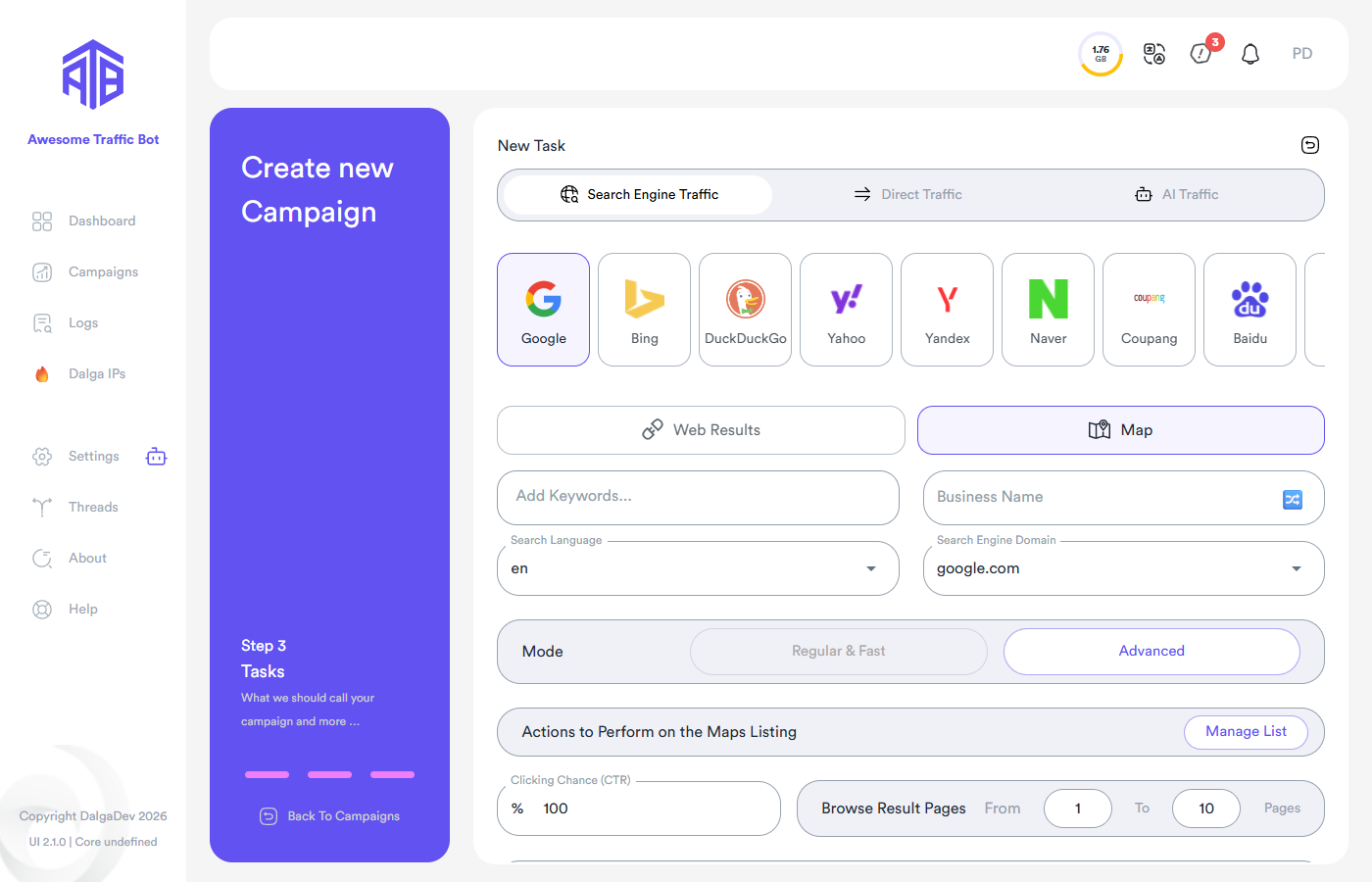
Switch the sub-service to Map to send searches to your Google Business / Naver Maps listing instead of web results. Setup mirrors the regular search engine mode with one crucial difference:
In Google Maps and Naver Maps mode, enter your Business Name exactly as it appears on the listing — not your website URL — so the bot can find your listing in the map results.
Actions on the Maps listing
After finding your listing, the bot can perform actions on it. Click Manage List in the Actions to Perform on the Maps Listing section and add one or more actions, each with its own chance and delay range:
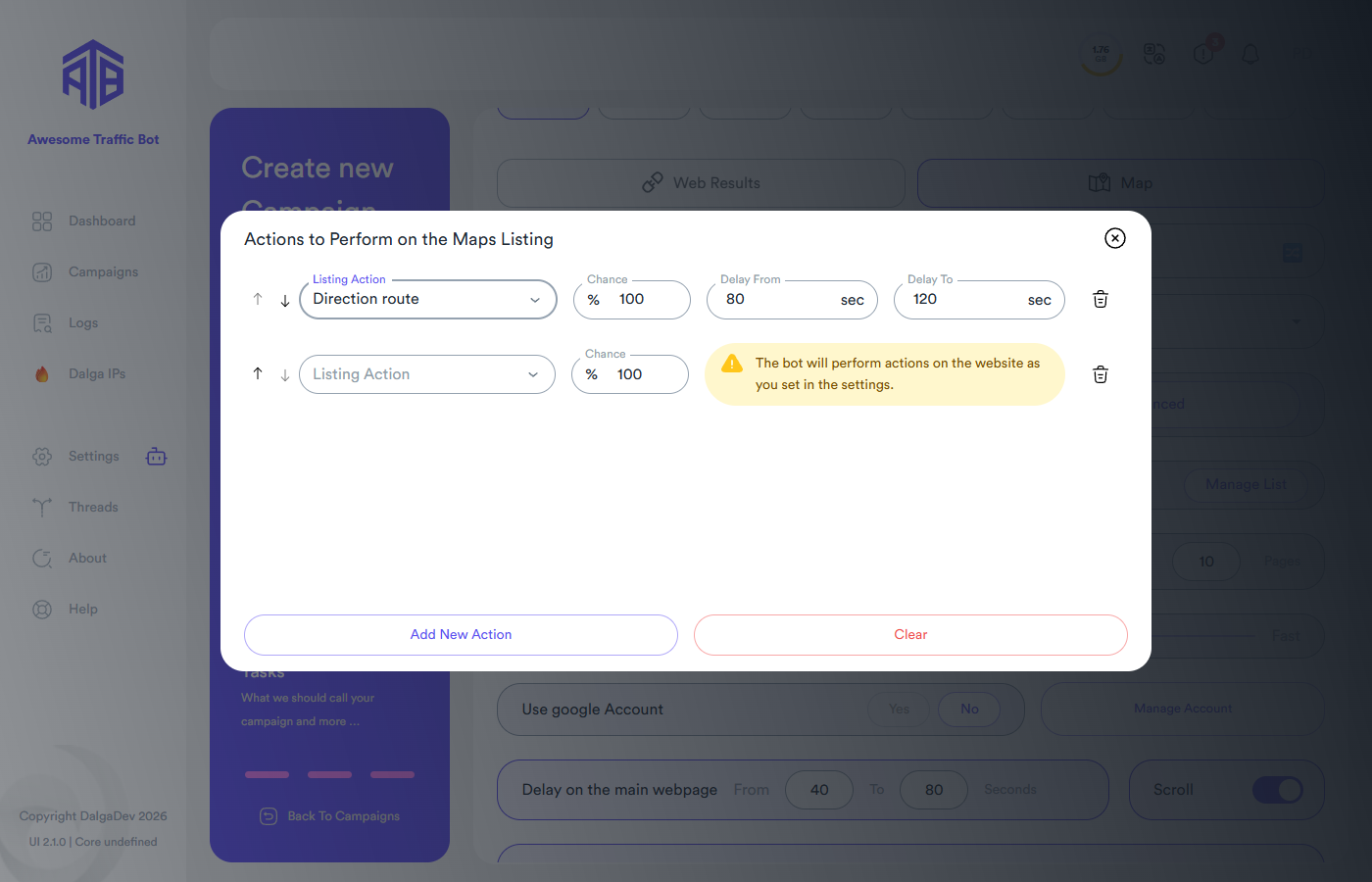
Available actions: Click on website, Click reviews, Check information, Direction route, Bookmark, and AI (describe the interaction in a prompt). Reorder actions with the arrows; they run in order, each rolling its own chance.
Local searches are all about proximity — combine Maps campaigns with GPS Simulation so visitors appear to be physically near your business.
Naver services
Naver campaigns can target four services, switched at the top of the task:
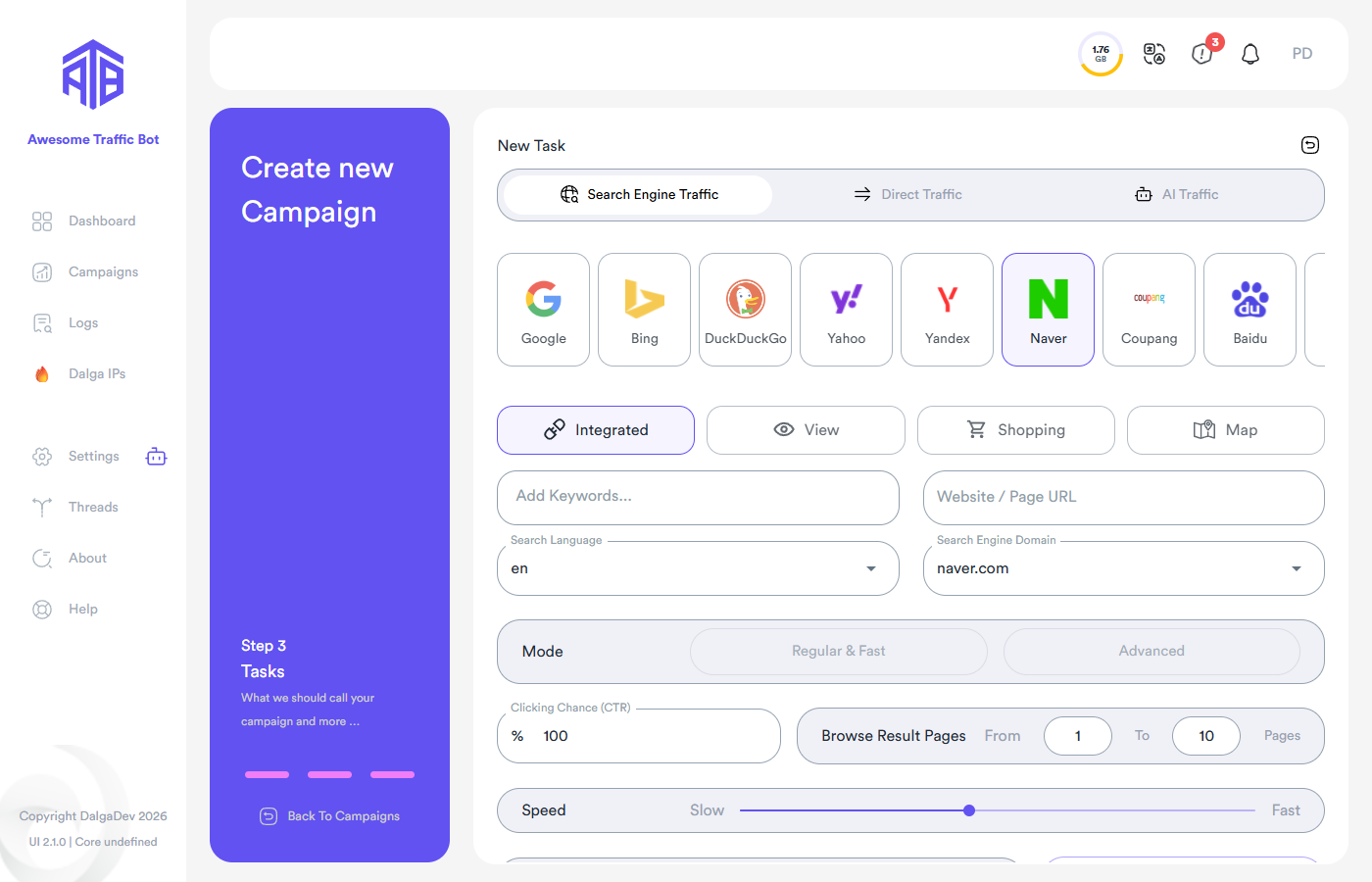
- Integrated — Naver's main (integrated) search results.
- View — the View/blog-post results tab.
- Shopping — Naver Shopping product results.
- Map — Naver Maps listings (enter the business name, as with Google Maps).
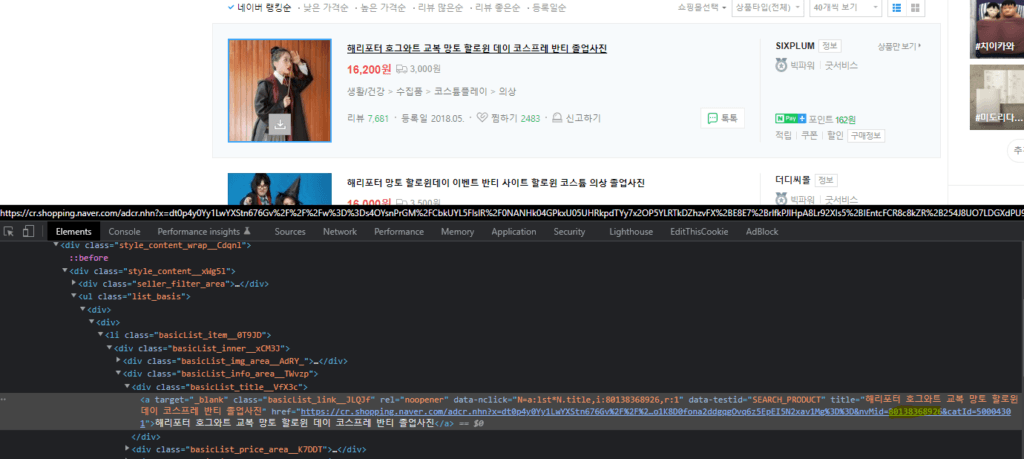
For Naver Shopping (네이버쇼핑), enter your product's nvMid instead of a URL. Right-click your product's link on Naver Shopping, copy it, and take the nvMid value from that link:
Full Korean-language walkthrough: 네이버 CTR SEO 캠페인 설정.
Use Account
Log into a search engine account before searching (Google, Bing, Naver). Logged-in searches from accounts with history carry more weight. Manage Account opens the account manager — see Accounts for importing accounts, groups, 2FA/OTP, and login behavior.
Session behavior
- Delay on the main webpage — how long the visitor stays on your page (session duration).
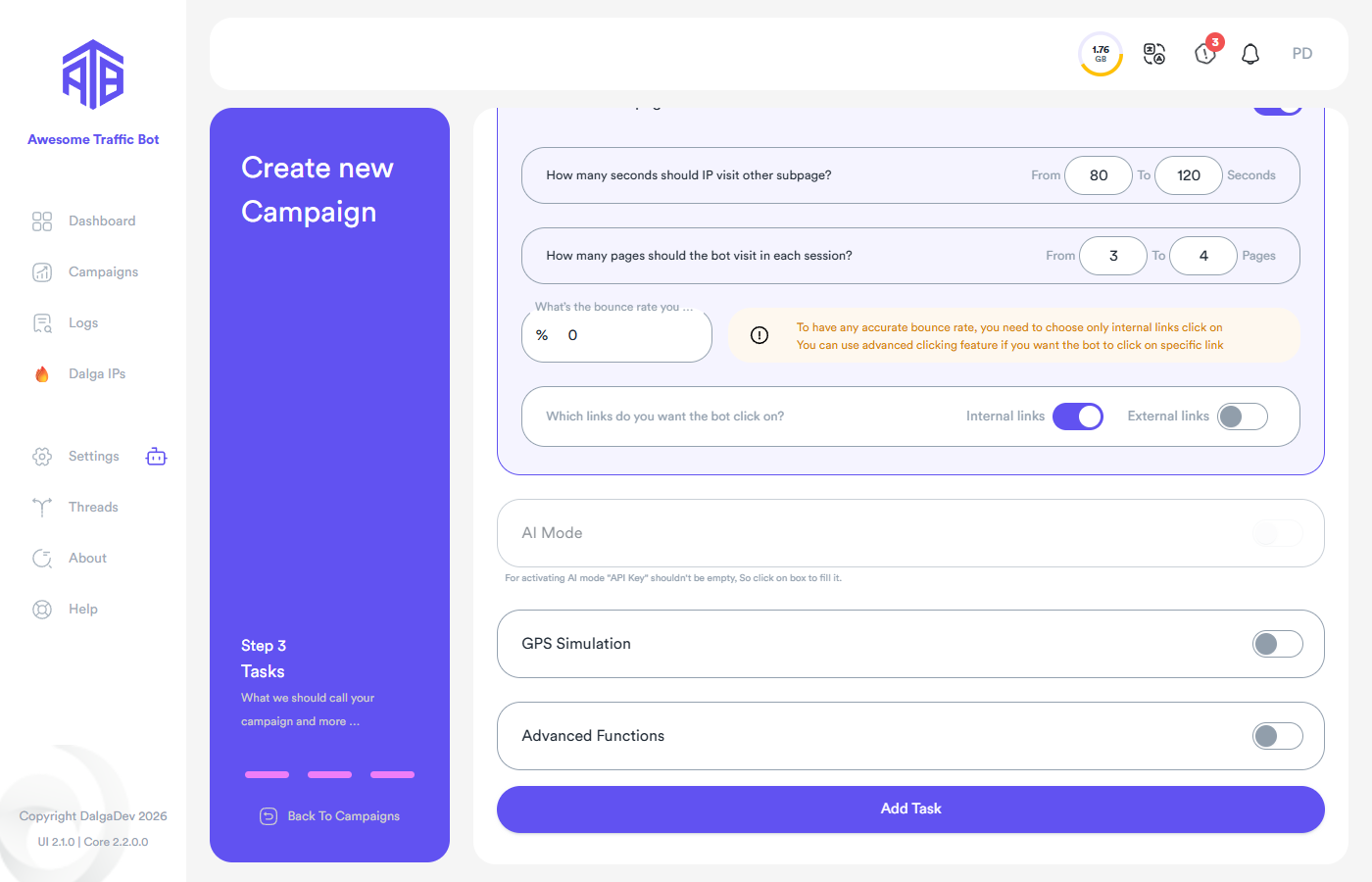
- Visit Other Webpages — browse more of your site afterwards: dwell time (divided across pages), number of pages, desired bounce rate, and whether to click internal links, external links, or both.
For SEO-meaningful sessions, enable Visit Other Webpages and have the bot browse 3–4 pages for 80–120 seconds with about a 20% bounce rate. Long, multi-page sessions signal genuine engagement.
For an accurate bounce rate, restrict clicking to internal links — or use Advanced Functions to click specific links.
- AI Mode — let an AI model do part of the browsing (requires an API key — see AI Traffic).
- GPS Simulation — spoof device location; especially useful for Maps.
- Advanced Functions — custom clicks, typing, cookies, JS.